WordPress Image Optimization Plugins: ShortPixel, Imagify, and EWWW
Compare ShortPixel and Imagify if you want cloud processing for new uploads and an existing WordPress library; include EWWW Image Optimizer if local processing matters too. Look beyond compression percentages: check original-file recovery, billing for thumbnails, and how the optimized format actually reaches a visitor’s browser.
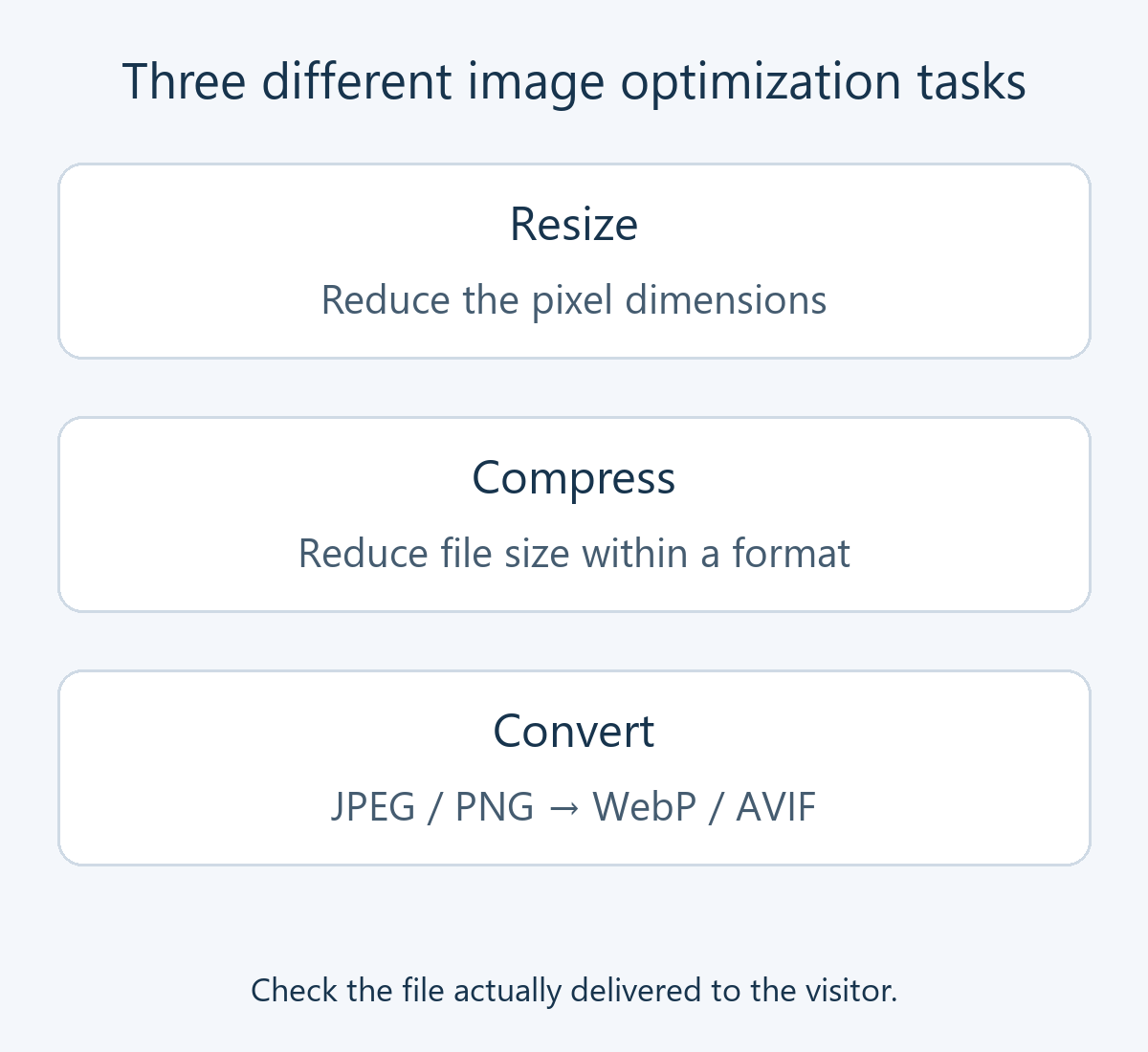
Compression, resizing, and conversion solve different problems
Image optimization reduces the data transferred while preserving the quality needed on screen. If a 6,000-pixel-wide photo appears in a small article column, first decide what dimensions you need. Compression alone can leave unnecessary pixels in the file. High-density screens or a zoom feature may still justify an image wider than its displayed size.
- Resizing reduces pixel dimensions. Enlarging the result cannot recover detail discarded when it was reduced.
- Compression reduces file size within a format. Lossless compression preserves pixel information; lossy compression discards some information to save more space. Small text and product texture can be sensitive to that loss.
- Conversion creates another format, such as WebP or AVIF, from JPEG or PNG. Creating a converted file and delivering it to a browser are separate tasks.
If you already upload properly sized WebP images, another optimizer may add little value. Our guide to converting images to WebP covers preparation before uploading. A gallery plugin changes presentation; an optimizer changes or delivers the image files. They serve different purposes.
Compare processing methods and costs
| Consideration | ShortPixel Image Optimizer | Imagify | EWWW Image Optimizer |
|---|---|---|---|
| Main processing location | Images sent to an external optimization service | Cloud processing connected through an account and API key | Local processing and separate cloud options |
| Usage to estimate | Credits for files, thumbnails, and extra formats; delivery allowance separately | Input file sizes, selected thumbnails, and reprocessing | Scope of free local functions, Compress API, and Easy IO delivery |
| Useful situation | Managing a large library and new uploads through one tool | Managing automatic compression and next-generation formats | Prioritizing processing location or hosting constraints |
| Check before adoption | Backups, selected sizes, formats, and credit use | Backups, processing allowance, and format delivery | Server tool support, actual mode, and delivery configuration |
ShortPixel: count processed files, not just uploaded photos
ShortPixel Image Optimizer compresses images in the cloud and replaces the files on your site with optimized versions. You can also assess WebP/AVIF generation and delivery options. ShortPixel Adaptive Images is a different, delivery-oriented product, so avoid mixing its behavior or billing with Image Optimizer.
On a credit-based plan, WordPress thumbnails can consume credits separately. The official example starts with one image and eight thumbnails: compressing all nine and creating nine WebP versions uses 18 credits. Conditions include an exception when compression cannot save at least 5%; see the ShortPixel credit calculation guide. Compare recurring subscriptions, one-time processing, and the scope of unlimited plans separately.
Imagify: estimate input volume and reoptimization
Imagify can optimize uploads automatically, process existing media, and manage creation and display of WebP or AVIF. Assess whether its automatic workflow suits your routine and whether it preserves the quality of both photographs and text-heavy screenshots.
Allowance use is not simply the size of the smaller output. According to Imagify’s quota documentation, input file sizes and selected thumbnails contribute to usage. Changing compression and optimizing again can consume more allowance, and restoring originals does not refund the quota already used. Check a small sample before committing the entire library.
EWWW: separate free local functions from paid services
EWWW Image Optimizer offers optimization using tools on your server alongside cloud services. Local processing can reduce external image transfers, but uses server resources and needs compatible hosting. Choosing a local option does not mean that every enabled capability necessarily stays on your server.
When hosting prevents local processing, the free cloud fallback has a limited, JPEG-focused scope. Other formats, stronger compression, and delivery services can have different requirements. Check the server requirements and compression-level documentation for the actual mode you select. Creating WebP files and further optimizing existing WebP files are different features.
How to choose for your site
For a small blog, compare free allowances and restoration convenience first. Preparing dimensions and formats before uploading may remove the need for an additional plugin. For a large archive, calculate the initial library-processing cost separately from ongoing monthly uploads.
Count the thumbnail sizes generated by your theme and commerce plugins, not just media-library items. Before excluding or deleting an unfamiliar size, check whether it is used in posts, archive cards, or product pages. Reducing processing scope without checking those uses can leave relevant images untreated or affect the current layout.
If external transfer is restricted, processing location comes before price. Cloud processing still needs communication with the service and storage for backups; free local processing needs server capacity and hosting compatibility. Assign each optimization task to one tool rather than enabling equivalent compression and conversion features in several plugins.
Test a sample before processing everything
Prepare recoverable backups of the media files and database, and check the plugin’s original-file backup setting too. Our guide to finding WordPress plugins explains installation. Avoid rushing into automatic uploads or a full-library job before completing these checks.
- Select different kinds of images. Include a landscape photo, a screenshot with small text, and a transparent image if your site uses them. Record the original pixel dimensions and file sizes.
- Change one setting at a time. Enable original backups, then decide compression level, maximum dimensions, and output format. Separate changes so you can identify which one affects the result.
- Process only the sample and inspect quality. Compare texture, color, text, and transparency edges at article size and when enlarged. If the loss is unacceptable, restore the original and try a more conservative setting.
- Check the file delivered in a real article. Follow the browser checks below on desktop and mobile. Make sure the site is not continuing to deliver an older file after generating a replacement.
- Test restoring one image before expanding the job. Confirm that the original actually returns, then choose the bulk-processing scope. Monitor errors, remaining allowance, and server load during the job.
Record input/output dimensions and file sizes, the compression method, quality issues, and delivered format together. A size reduction and newly blurred text are both relevant findings. You do not need to commit to a particular savings percentage or speed improvement before seeing the results.
Why generating WebP may not change the image visitors receive
File creation and delivery settings can be separate. For example, EWWW’s WebP delivery documentation distinguishes server rules that change the response from methods that change the page’s HTML. A content delivery network (CDN), caches, and theme background images can also affect the outcome. A “generated” status is not the end of the check.
In your browser’s developer tools, open Network, filter for images, and reload the page. Inspect the requested address, response Content-Type, and transferred size. A server can return another format at the same URL, so a .jpg suffix alone does not prove failure. In Elements, compare the selected srcset or picture source with the actual request. A smaller responsive image on mobile can be the correct result.
If an older result persists, clear page and CDN caches and check again. If images break, first undo the delivery option you just enabled and verify that the original display returns. Apply one documented, compatible method at a time rather than changing several server rules together. Treat other page-performance problems separately; our Core Web Vitals guide explains the broader measures.
How to recover when image quality deteriorates
Stop further automatic processing and repeated optimization first. If original backups were enabled, ShortPixel provides “Restore backup” in the image’s menu in Media Library list view; Imagify provides “Restore Original” in its list column. If the action is missing, check that a backup for that image still exists. See the official ShortPixel restoration instructions and Imagify restoration instructions for the conditions.
Deactivating a plugin alone does not restore files it has already changed. Without an original, information lost to lossy compression cannot be reconstructed; use a separate media or site backup. After restoration, check whether converted copies or caches still show the previous result. Our WordPress backup plugin comparison covers recovery choices.