How to Find WordPress Plugins: Free and Paid Options
You can get WordPress plugins from the official WordPress.org plugin directory, developers’ websites, and plugin marketplaces. Start by defining the feature you need, explore free directory options, and compare paid products when you can identify a specific missing feature or support requirement.
A plugin is software that adds features such as contact forms, bookings, or a store to WordPress. Its role differs from a theme, which primarily controls design and presentation. For the basic relationship, see our introduction to WordPress, themes, and plugins. This guide focuses on sources and selection criteria rather than ranking individual products.
Where can you get WordPress plugins?
Each source presents different information and installation options. Free and paid products are not neatly divided by source: a developer can offer a free edition, while a directory plugin may point to paid extensions sold elsewhere.
| Source | What you can find | What to check |
|---|---|---|
| Official WordPress.org plugin directory | Free-to-install plugins and developer information | Features, requirements, support discussions, and external service costs |
| Developer’s official website | Free or paid core products, add-ons, and bundles | Files supplied, required base plugin, updates, and support terms |
| A marketplace such as CodeCanyon’s WordPress category | Plugins from multiple sellers | Whether the item is for WordPress and works independently or as an add-on |
The dashboard paths below refer to a typical self-hosted WordPress installation. WordPress.com currently supports plugin installation on its Personal, Premium, Business, and Commerce paid plans; free sites require an upgrade. Check its official plugin guidance. Even on an eligible plan, some plugins are restricted, and other hosts may impose their own restrictions.
Find free plugins in the official directory
If you already have a site, search from Plugins → Add New Plugin in the dashboard. Enter a feature or a product name. Labels can vary by interface and language, and your account needs permission to install plugins.
- Turn your task into a search phrase. For example, search for “contact form.” If you have a particular product in mind, match its developer as well as its name to distinguish similarly named items.
- Read the feature details. Check whether your required feature belongs to the free edition and whether it needs a separate account or additional plugin. Appearing in a promotional image does not mean a feature is included.
- Check requirements and maintenance information. Review the required WordPress version, server requirements, updates, and changelog. “Untested with your version” indicates missing compatibility confirmation; it does not automatically mean the plugin cannot work.
- Read reviews alongside support discussions. Look beyond stars and installation counts. Read recent issues, developer replies, and questions resembling your own use case.
You can browse the official directory before building a site. For example, the Contact Form 7 listing illustrates how to find a developer, description, installation information, support, and development history. It is an example of reading a listing, not a claim that the plugin is best for every site.
Keep the links for two or three candidates and compare their required features. You do not need to install everything you find. The official WordPress plugin management guide also explains discovery and installation paths.
Get paid plugins from developers and marketplaces
A developer link in a directory listing is a useful route to product editions and documentation. If a search result or review introduces a product, read the final purchase conditions on the developer’s website or the actual marketplace listing.
Before paying, identify the type of product:
- Standalone plugin: You install and configure the product itself. Check separately whether it also needs an external service connection.
- Add-on: It extends an existing base plugin. Buying the add-on alone may not provide a usable feature.
- Bundle: It provides multiple plugins or support services together. Check which products you will actually use and the permitted site scope.
For example, the WooCommerce Marketplace offers extensions for online stores. A name referring to bookings, memberships, or product options is not enough to make a purchase decision: read the individual requirements and identify the base plugin.
After purchasing, retain the installation files, purchase account, order details, and terms. Support and update periods can differ. Policies such as Envato’s item support guidance distinguish help with product features from installation and custom development. “Support included” should not be read as a promise to build your site.
How do free and paid plugins differ?
The key question is whether a product completes your task. There is little reason to pay for features that a free edition already supplies, but comparing only free editions is insufficient when a required integration or management feature is paid.
| Criterion | Check in a free edition | Check in a paid product |
|---|---|---|
| Features | Can it complete the required task? | Do the additions solve your actual requirement? |
| Usage limits | Are sending, storage, or processing limits involved? | What are the plan limits and overage charges? |
| Support and updates | Can you manage it using documentation and public support? | What are the support scope, contact method, term, and renewal conditions? |
| Total cost | Does it connect to a separately paid service? | Are service fees or additional products needed beyond the purchase price? |
Free to install does not necessarily mean free for every use. Plugins connecting to email delivery, image processing, maps, or other external services may involve separate limits and fees. The WordPress.org plugin guidelines permit plugins that connect to paid external services.
Consider a contact form: displaying fields, notifying a staff member, saving submissions, and forwarding them to another work tool are separate requirements. List the ones you need and compare each candidate’s coverage. This provides a more practical basis than a claim about the total number of features.
Choose a plugin your site actually needs
Write down the problem in one sentence. “Let a visitor send an inquiry and notify the person responsible” gives you a verifiable outcome; “install it because it is popular” does not.
- Existing features: Check WordPress itself, your theme, hosting service, and current plugins for the same function. Duplicate features can make configuration and troubleshooting harder.
- Usability: Read the setup instructions and check whether you can locate the main controls and get help in a language you understand. More settings are not always an advantage.
- Compatibility: Check requirements alongside guidance for your theme and essential plugins. For an important site, run representative tasks in a test environment.
- Data handling: Read the product and privacy information to see whether inquiries, customer details, or images leave your site. Check the permissions and charges associated with a service connection.
- Maintenance evidence: Consider updates, changelogs, support replies, and reviews together. Popularity or payment does not guarantee quality in every environment.
WordPress.com’s plugin selection guide also discusses overlapping functionality, updates, compatibility, and support. Apply candidates one at a time so that you can identify which change belongs to which plugin.
What to check before downloading or buying
Keep the product listing and installation guide open and check whether you can answer these questions. Ask the seller about unclear points before paying.
- Is this the correct file? Confirm that the product is a WordPress plugin and obtain its installation ZIP. If a full download package contains a separate installable ZIP, follow the documentation. Upload a plugin through the plugin uploader, not the theme uploader.
- Does it need a base product? An add-on for a store, form builder, or page editor may require a particular base plugin and version. Check whether a free base edition is sufficient or a paid edition is also required.
- Does it need an account or key? A purchase license key and an application programming interface (API) key for an external service can serve different purposes. An API key is authentication information used to access that service. Check who issues the key and what service agreement is required.
- Are ongoing costs and expiry conditions clear? Review site scope, renewal prices, automatic billing, support periods, external usage charges, and refund conditions. Read what happens separately to features, updates, and support if you do not renew.
- Can you move away later? Check data export options, deletion behavior, and external service cancellation. This matters particularly for inquiry records, orders, or other information you must retain.
Useful questions include “Do I need to buy anything besides the base plugin?” and “Which services stop if I do not renew?” Compare the cost and management process over your intended operating period, rather than only the introductory discount.
Understand installation, activation, and setup
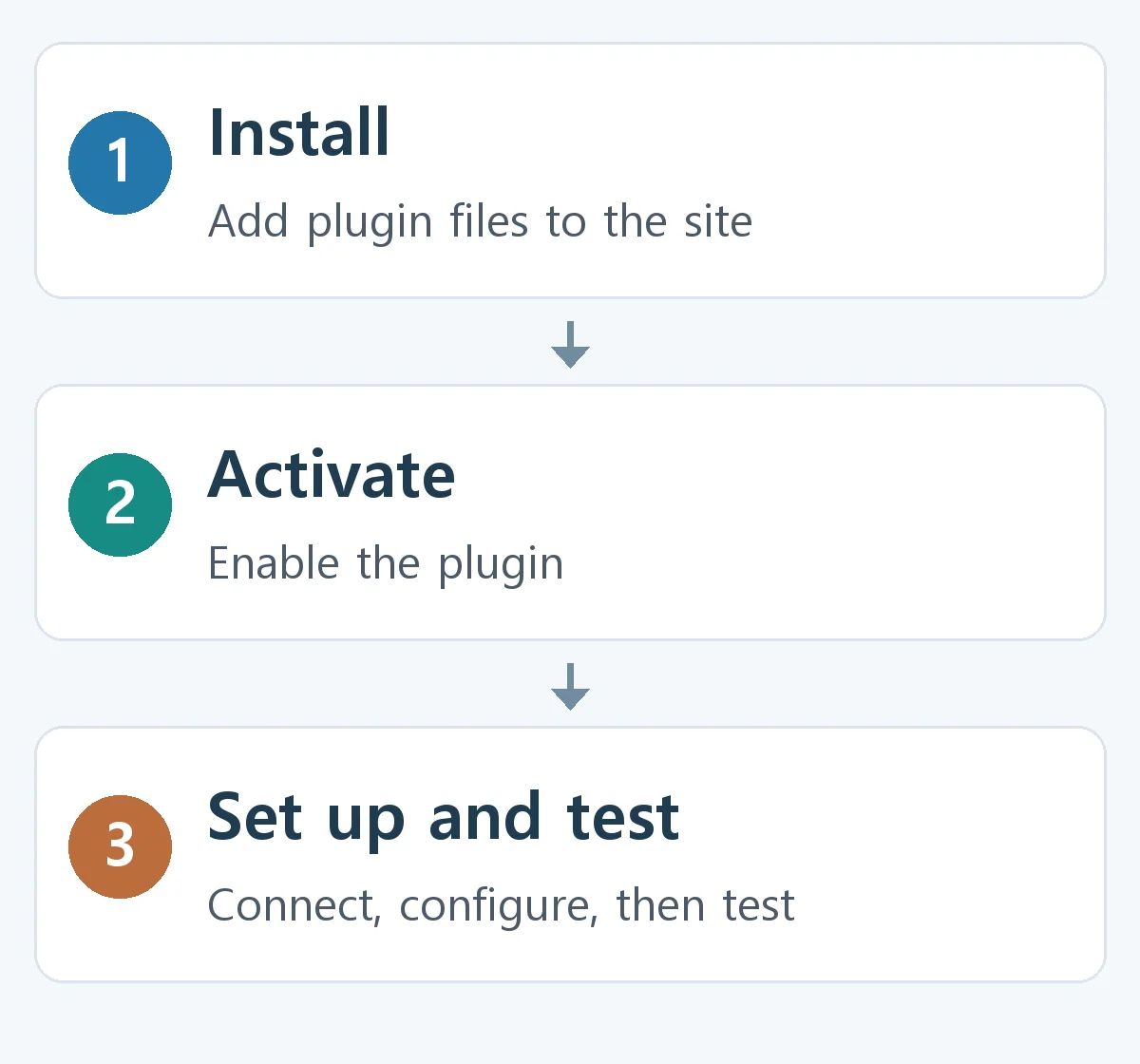
Installation adds plugin files to the site. Activation enables the program. Setup and testing involve choosing options, connecting services, placing features on pages, and checking the result. Activation alone does not complete every configuration.
- Record the current state and prepare a backup. Review existing plugins and relevant settings, then prepare recoverable copies of files and the database. See the official WordPress backup guidance. Test substantial changes on a test site where possible.
- Install and activate one plugin. For a directory item, use Plugins → Add New Plugin → Install Now. For an external ZIP, use Upload Plugin on the same screen. Activate after installation, following the documented order for any required base plugin and add-on.
- Configure it using the documentation. Look for settings or documentation links under Plugins → Installed Plugins, a newly added menu, or a submenu under Settings. Some features need a block or shortcode—a short code that displays a feature—inserted into a page. The plugin setup guide explains these differences.
- Check the outcome as a visitor. For a contact form, test entering details, submitting, seeing a completion message, and receiving the notification. If you need stored submissions, check those too. Inspect the logged-out experience and mobile display.
- If something breaks, stop adding changes and isolate the cause. If the dashboard remains accessible, deactivate the newly added plugin and compare the symptoms. If access is lost or a critical feature fails, use your host’s recovery tools or support. Deactivation may not reverse changes already made to settings or data.
Deactivation stops a plugin from running; deletion removes its files. Whether deletion retains or removes data depends on the plugin. Separately check whether an external service or paid subscription must be cancelled to stop automatic billing. See the official deactivation and deletion guidance.
You do not need a collection of plugins from the outset. Define one outcome, compare candidates for that task, and apply them individually so that both costs and maintenance remain easier to assess.