WordPress Backup Plugins: UpdraftPlus, Duplicator, and BackWPup
Compare UpdraftPlus and BackWPup for routine WordPress backups and restoration, and Duplicator if packaging a site for another server also matters. The decisive test is whether you can retrieve the necessary files and database and restore them, rather than simply seeing a successful job status. Check recovery without dashboard access and the free edition’s restoration scope too.
How a site backup differs from exporting posts
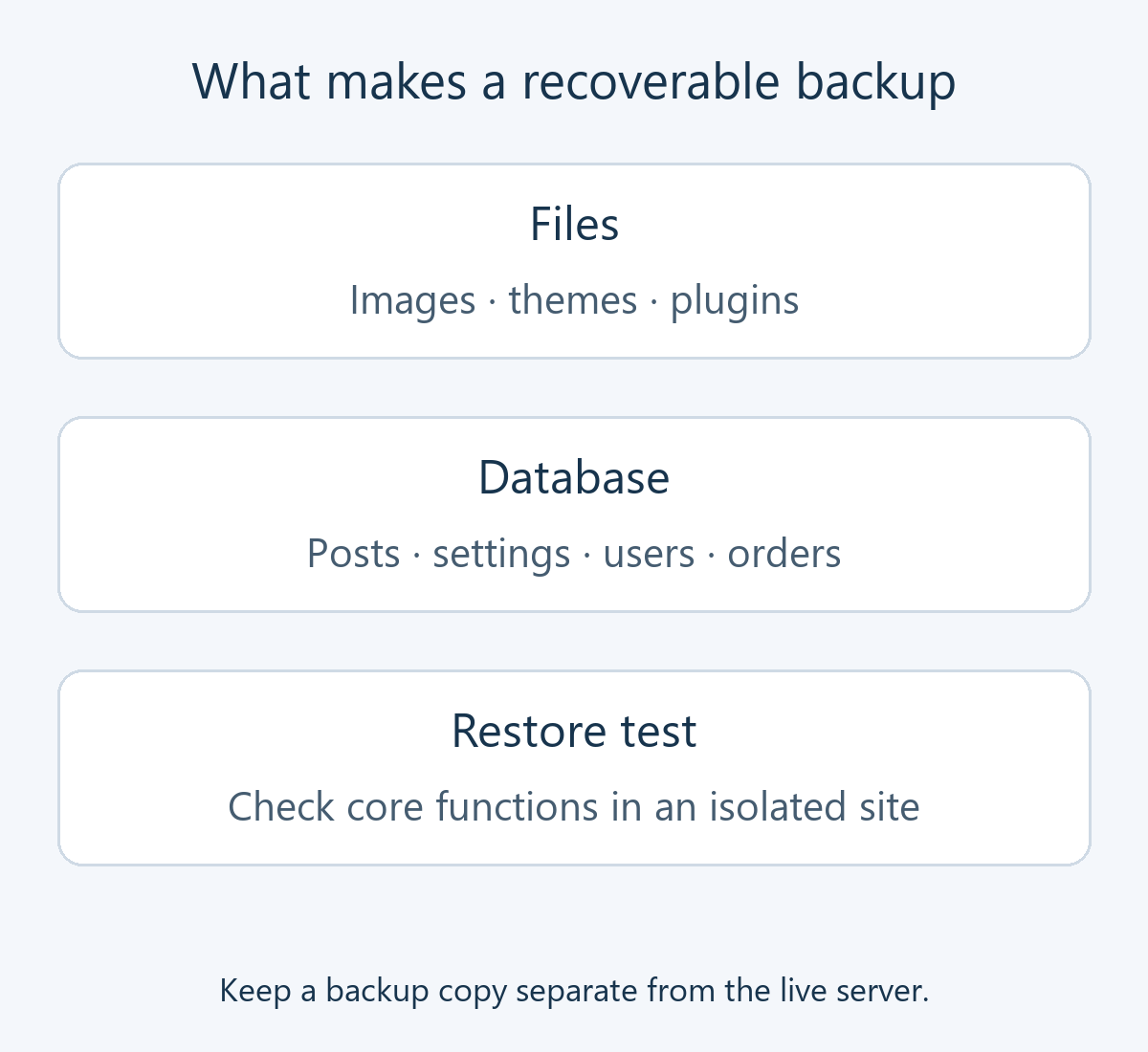
WordPress content export helps move content; it is not the same as a backup that returns the whole site to a previous state. Posts, settings, users, and orders belong in the database. Images and theme or plugin code belong in files. Recovery requires the relevant components from a compatible point in time.
A database-only restore can leave posts pointing to missing images. Keeping uploads alone omits posts, their associations, settings, and orders. Do not assume a default backup also includes WordPress core, wp-config.php, or extra directories outside the site: inspect the product’s included components.
If your host supplies backups, check retention, whole-site versus individual-file restoration, and retrieval when you cannot access the account. A sole copy on the same server does not adequately address a server failure or loss of access.
Compare free features and restoration methods
| Consideration | UpdraftPlus | Duplicator | BackWPup |
|---|---|---|---|
| Primary use to compare | Routine backups and component-based restoration | Site packages, cloning, and migration | Scheduled backups, storage, and restoration |
| Check in the free edition | File/database schedules, supported remote destinations, restore | Manual backups, packages, and current restore options | File/database schedules, supported storage, restoration of manually uploaded archives |
| Potential paid additions | Incremental backups, multiple destinations, advanced retention/storage | Scheduling, external storage integrations, disaster-recovery scope | Direct cloud restoration, standalone restore application, encryption/migration |
| First verification | Retrieve and restore a matching file/database set | Build a real-size package and restore at the destination | Review scheduled execution and free/Pro restore differences |
UpdraftPlus: a starting point for routine backup management
UpdraftPlus lets you schedule files and the database separately, use supported remote storage, and select components for restoration. It is worth considering for a publishing blog that needs an understandable recurring backup routine.
The free edition supports destinations such as Google Drive, Dropbox, and Amazon S3, along with scheduling and restoration. Multiple simultaneous destinations, incremental backups, and exact start-time scheduling have different scope; see the free-versus-Premium comparison. Support for a storage destination does not make that provider’s capacity free.
Duplicator: verify the package and its destination
Duplicator is a candidate for packaging files and the database to copy or move a site. The current free listing includes restoration and Duplicator Cloud connectivity, so older claims that all restore or remote-storage options require payment are unreliable. Scheduling and other storage integrations have separate edition requirements, and cloud capacity has its own terms.
The classic installation method uses an archive and its matching installer. Its official instructions require preparing and validating an empty destination and database. Do not substitute a live-site overwrite for a recovery test. After a successful installation, follow the cleanup instructions for installer and archive files left on the server.
BackWPup: the free edition also supports restoration
BackWPup handles scheduled file/database backups and external storage. Its current free edition can restore a manually uploaded archive. Direct restoration from storage and the standalone restore application differ from that free workflow; describing all restoration as paid is inaccurate.
Use the official edition comparison to check destinations, encryption, and recovery options. Saving a schedule is not proof that it runs: inspect execution history, notifications, and whether you can retrieve the result.
Choose a schedule and retention policy around acceptable loss
Decide how much new data you could afford to lose. Restoring yesterday’s database can remove today’s posts, comments, and orders. An occasional publishing blog and a store taking orders continuously need different plans. Files and database schedules can differ, but the material required for recovery must remain available together.
A single latest copy is insufficient when a mistaken setting or corruption is already in that copy. Keep earlier generations according to how long a problem might take to notice and verify available capacity. Large media libraries increase archive size, processing time, and transfer volume. Incremental backups save changes, but you must understand which base and subsequent changes the product needs to restore them.
Before an update, migration, or bulk image job, establish a recovery point separately from the routine schedule. Decide how failed runs will be reported and what retention should do when storage fills.
Example: verify a first backup and restore with UpdraftPlus
Prepare administrator access, remote storage, and an isolated test environment that will not overwrite production. Our WordPress plugin installation guide covers general installation. Use this sequence to turn a product comparison into a recovery check.
- Open Settings → UpdraftPlus Backups → Settings. Set file/database schedules and retention counts, then save. A maximum count does not guarantee a number of days of successful history.
- Connect remote storage. Complete authorization and confirm the setting was saved. Keep account-recovery information accessible outside the WordPress account.
- Run Backup Now from Backup / Restore. Check inclusion of files and database and whether remote transfer is enabled. Inspect the log and the components that arrived at the destination.
- Download one complete set. If the backup is split, retrieve all needed parts and the matching database. Confirm the downloads completed and file sizes are plausible.
- Import and restore on the isolated test site. Upload files or rescan storage from the existing-backups area. Check components and confirm the data being overwritten belongs to the test site.
- Check the recovered site. Inspect posts, images, login, menus, permalinks, and forms. Prevent test-copy email or payment integrations from affecting live services. Follow migration instructions if the destination address changes.
The screens are documented in the official backup and restore tutorial. Record the backup time, components, location, test environment, and functions checked. Distinguish a completion message from a working recovered site.
A recovery plan that only says “click Restore in the dashboard” can fail when the site will not open. Before adoption, establish how to retrieve the remote copy, access hosting files and the database, and obtain required passwords or recovery material.
UpdraftPlus documents a fresh WordPress/plugin installation and a manual path in its recovery-without-WP-Admin guide. Duplicator’s archive/installer approach is distinct from the Disaster Recovery feature available under eligible paid plans. A local recovery point does not replace an external copy if the server itself is lost.
The BackWPup restoration guide distinguishes the free download-and-upload workflow from direct Pro restoration; the standalone application for recovery without WordPress belongs to Pro. Choose a procedure that matches the files and access you actually retain.
When a backup fails or only an older copy remains
Before simply rerunning a failure, inspect the log for storage shortages, authentication or connection errors, execution limits, and missing components. Do not delete a known-good copy because another file failed. Distinguish the job’s start time, the data’s recovery point, and arrival at remote storage.
Restoring an old store database can remove newer orders and member changes. Preserve the current state, plan whether order-taking must stop, and work out reconciliation with payment-service records before restoring. Arbitrarily merging selected tables can damage relationships: follow a recovery process appropriate to the store’s actual configuration.
Archives can contain user data and settings, so restrict storage access and do not leave them publicly downloadable. Keep encryption keys and recovery instructions separately: losing the key can make an encrypted copy unusable. Before bulk image optimization or an SEO plugin migration, prepare around the ability to return to the required state, rather than the existence of a recent archive alone.