WordPress Related Posts Plugins: YARPP, Contextual, and Inline Compared
Compare YARPP and Contextual Related Posts when you want control over relevance, and Inline Related Posts when recommendation boxes between sections are the goal. Judge whether suggestions answer a plausible follow-up question in the reader’s language before considering their appearance. If your theme already provides suitable recommendations or your collection is small, deliberately chosen contextual links may be enough.
Related posts are different from popular or recent posts
Related posts suggest material following naturally from the current question. Popular posts are selected by views or responses; recent posts by publication time. An article about contact forms might usefully suggest email delivery or spam prevention, while a widely read image-selling article may be unrelated.
Automatic matching uses similarity in titles, content, and classifications. Sharing a broad word such as “WordPress” does not establish the same reader need. First assess whether enough connected articles exist, whether categories and tags are consistent, and what content should be eligible or excluded.
Do not leave essential prerequisites to automatic suggestions. If installation preparation matters, link to the plugin selection and installation guide in that explanation. A recommendation box supplements those necessary connections.
Compare matching methods and feature scope
| Plugin | Main focus | Placement | Check before choosing |
|---|---|---|---|
| YARPP | Titles, content, taxonomies, and relevance criteria | Automatic, block, widget, and shortcode | Current compatibility notice, threshold, and language results |
| Contextual Related Posts | Content similarity, filtering, and caching | Automatic, block, widget, and shortcode | Free versus Pro weighting and performance controls |
| Inline Related Posts | Recommendation boxes within content | Automatic insertion and individual placement | Count, positions, exclusions, and paid design options |
YARPP: separate the candidate pool from matching criteria
YARPP stands for Yet Another Related Posts Plugin. Under Settings → Related Posts (YARPP), or the menu labeled YARPP, distinguish The Pool, Algorithm, and Automatic Display Options. If controls are hidden, check Screen Options for the relevant settings section.
Lowering the match threshold indiscriminately can fill an empty list with unrelated articles. Review exclusions first, then adjust gradually on representative content and read the results. Its official FAQ notes that title/body matching may be less helpful for languages without spaces between words, such as Japanese, and classifications may work better. “Supports all languages” does not guarantee equally useful suggestions.
The current listing also warns about lack of testing with the latest three major WordPress releases. This is not proof of failure or vulnerability, but it supports testing the current environment before new adoption. Evaluate the free core against your needs and include any theme-template work in the maintenance effort.
Contextual Related Posts: distinguish basic caching from Pro tuning
Contextual Related Posts, or CRP, uses article information and offers basic automatic placement, blocks, widgets, shortcodes, exclusions, and caching. In its Related Posts or CRP settings area, review List Tuning, output, and performance controls. The official algorithm guide helps distinguish candidate filters from relevance criteria.
Basic free matching and caching are different from Pro field weights, cache-duration controls, and load-management features. Review the free-versus-Pro comparison. The product creates search indexes in the database, so inspect initial processing and storage during adoption or large content changes. Having a cache does not establish negligible workload in every environment.
Inline Related Posts: assess placement in the reading flow
Inline Related Posts is managed through Settings → Inline Related Posts. It can introduce another resource before readers finish, but boxes between essential steps or a question and answer can obstruct the current task. Avoiding broken HTML does not establish a natural editorial position.
Separate basic and Pro presentation controls and inspect interaction with other automatically inserted elements. Start with few boxes on appropriate articles and read the surrounding paragraphs. Do not use advertised percentage increases in traffic or engagement as predicted results for your own site.
Choose between after-content and in-content placement
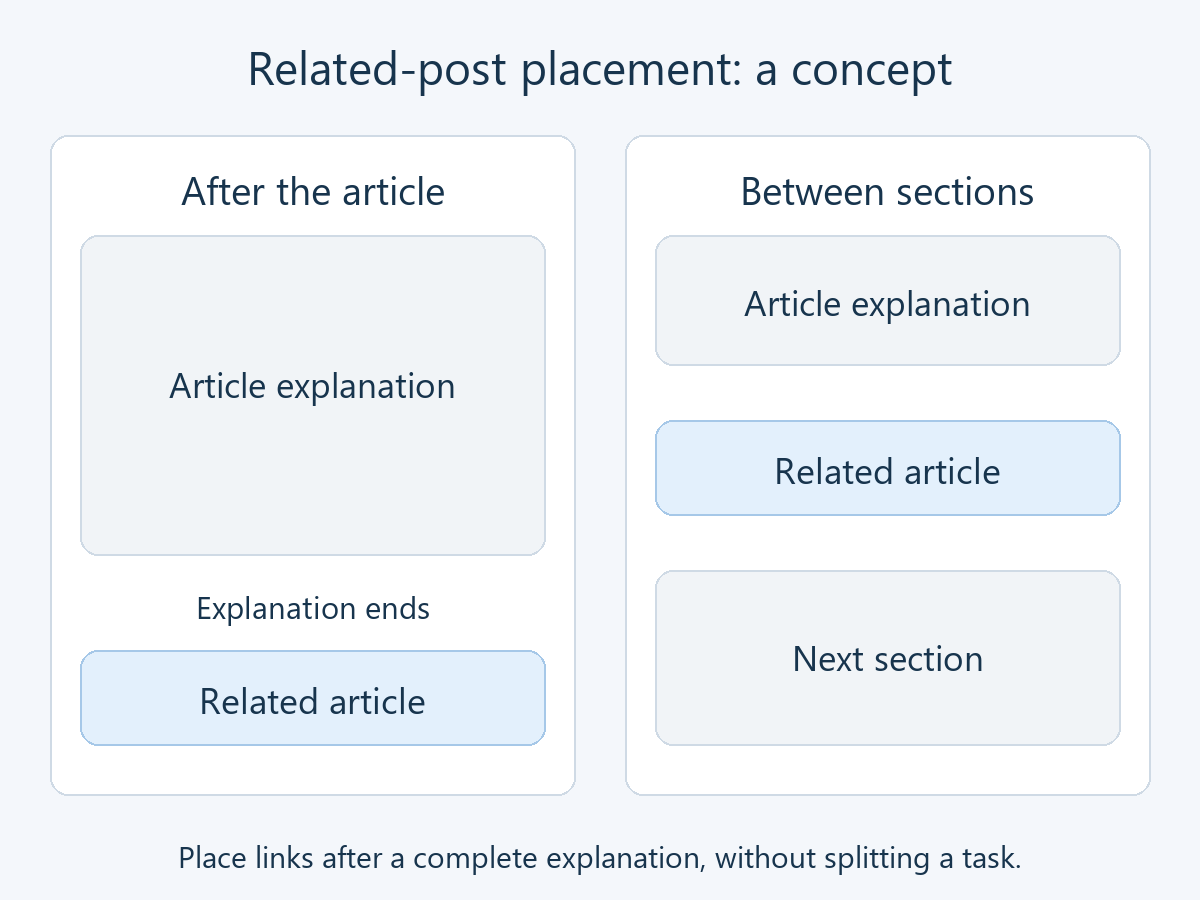
After-content recommendations reach readers who have finished the explanation. In-content placement can address a follow-up question where it arises, but may interrupt the task. Neither is universally better: distinguish what readers need to complete now from optional exploration.
For example, an explanation of contact-form setup can naturally link to email delivery configuration when discussing missing notifications. Avoid inserting an unrelated box between setting a recipient, saving, and checking receipt. Do not bunch recommendation boxes with advertisements or multiple competing prompts in the same view.
The following is a conceptual placement diagram, not a product interface. Even within an article, finish an explanation before offering another resource and leave the next section easy to continue reading.
Verify recommendations on representative articles
Prepare a backup and recovery method and check for existing theme or builder recommendations. Compare a topic with enough connected articles and one with sparse coverage. The following is an evaluation process, not a claim that a particular count is optimal.
- Start with restrained display. For example, try two or three suggestions in one position. Check exclusions for private, scheduled, sensitive, or irrelevant announcement content.
- Read the destinations. Verify that each answers a likely follow-up need. Check that the current article, unrelated notices, and removed content are not included.
- Change one matching criterion at a time. Compare the candidate pool, title/body/taxonomy settings, and threshold separately. Prefer fewer valid matches to filling a quota with unrelated posts.
- Check visitors and languages. Open logged out and on mobile, then review other language editions. Look for duplicated original/translation suggestions and titles mixed from another language.
- Check images and updates. Inspect missing-image fallbacks, cropping, and long titles. If testing a temporary title/category change, restore it and verify both recommendations and public cache update correctly.
Thumbnails should correspond to the actual article. A clear text list can be better than substituting unrelated imagery for missing featured images. Consider image optimization for large files, and do not shorten the explanation merely to fit more recommendations.
Diagnose language, cache, and relevance problems
For unrelated results, check whether broad shared words or boilerplate are driving similarity, then review classifications, exclusions, and thresholds. For no results, check candidate count, publication state, exclusions, threshold, and processing status. Decide what a fallback means to readers before automatically substituting recent or random posts.
For mixed languages, inspect language assignments and the translation integration first. CRP’s official listing records a cross-language cached-output fix in version 4.5.0, so check the installed version and environment. Reviewing one language does not verify the others; open the original and translations separately as a visitor.
For stale suggestions, distinguish the plugin’s recommendation cache from full-page caching. The CRP cache guide describes data/HTML caches and Clear Cache under Tools. Refresh the relevant recommendation cache, then check page caching rather than repeatedly clearing everything without identifying the cause.
For slower pages, compare the same article and device before and after adoption, separating the first request from warmed-cache results. Narrow the issue to matching, images, or scripts; reduce scope or undo the feature if needed. Use manually selected contextual links where they serve the topic better.
Assess whether readers reach useful explanations, not only whether they click. Understand metrics such as GA4 bounce rate, compare appropriate periods, and account for other changes. Adding a recommendation box alone does not establish improved satisfaction or search visibility.