WordPress Cache Plugins: Three Options for Different Hosting Setups
Compare WP Super Cache for straightforward page caching on a public blog, and W3 Total Cache if you need to manage several cache layers. LiteSpeed Cache requires a supported LiteSpeed server or QUIC.cloud configuration for its page-caching features. If your host already supplies page caching, check its recommended setup before installing another plugin.
What does page caching reduce?
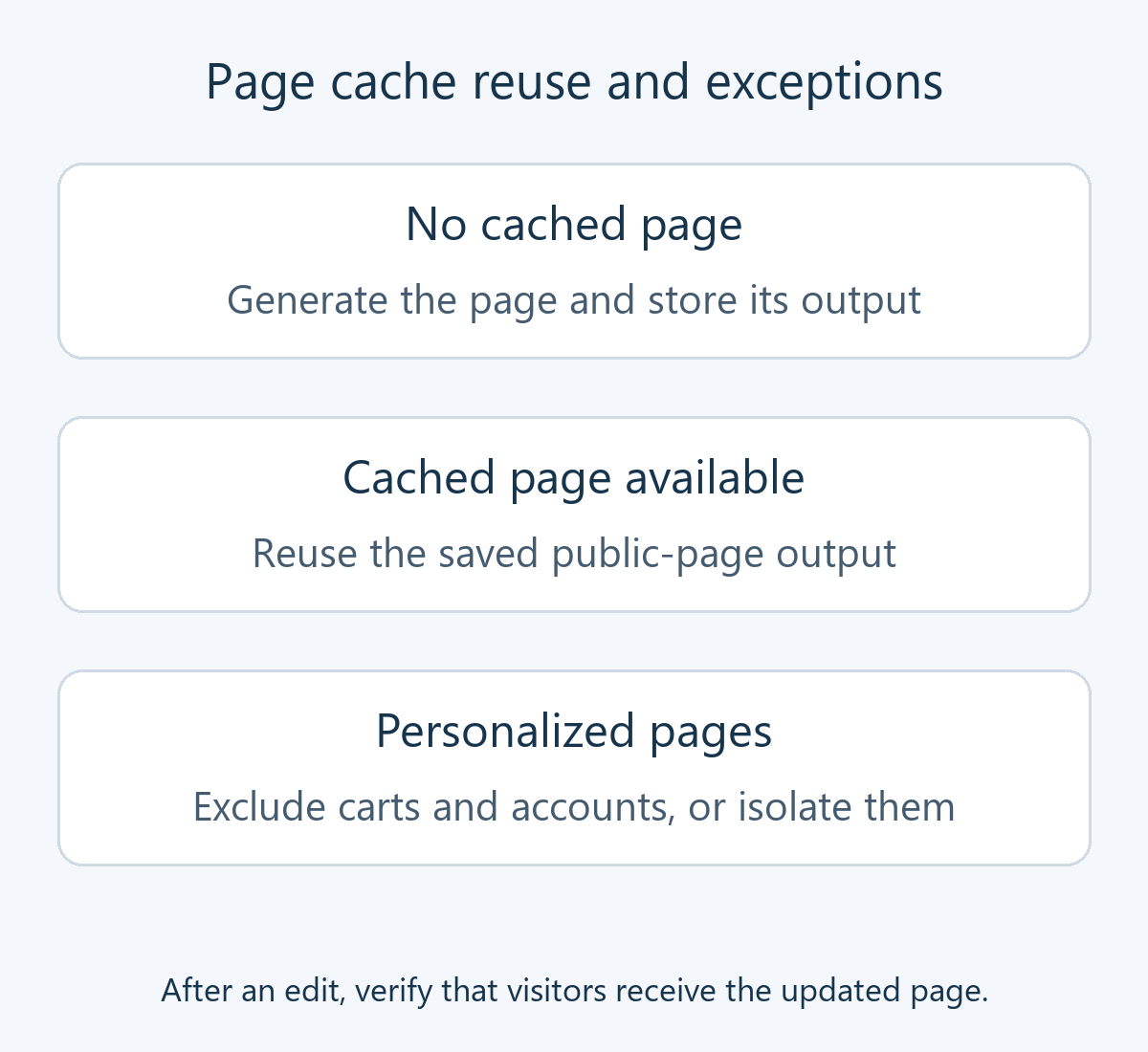
WordPress normally builds a page by reading content and settings for a request. Page caching stores that result and reuses it for subsequent requests to the same public page. It can reduce repeated HTML generation, but a request that builds the cache and one that uses an existing copy can behave differently.
Cache layers have different jobs. Browser caching stores assets such as images and CSS on a visitor’s device; object caching reuses data used while WordPress processes requests; page caching reuses the finished page. The WordPress caching handbook distinguishes these layers. Page caching does not itself shrink oversized images or fix heavy JavaScript.
Several logged-out visitors can share a cached public article. A page containing a member’s name, orders, or cart needs a different policy: exclude it or verify a supported way to isolate personalized output.
Compare the candidates against your hosting
| Plugin | When to consider it | Environment and cost checks |
|---|---|---|
| WP Super Cache | Starting with page caching for public articles | Free; confirm host compatibility and start by considering Simple mode |
| W3 Total Cache | Managing page, browser, and object caches and delivery integrations | Separate the free core, Pro features, server services, and CDN charges |
| LiteSpeed Cache | Supported LiteSpeed caching or QUIC.cloud | Free plugin; server support and external-service allowances or charges are separate |
Ask your host: “Is page caching already provided?”, “Is this plugin supported?”, and “Who handles account/cart exclusions and cache purging after edits?” The server’s name alone is less useful than knowing which caching service is actually available and who manages it.
Features and a useful first configuration
WP Super Cache: start with public-page caching
WP Super Cache stores generated pages as static files. It is a free option for learning and applying page caching without configuring every optimization layer. Its recommended settings include Simple caching; you do not need to begin with Expert mode and server-rule changes.
After installation, open Settings → WP Super Cache and inspect the Easy tab. “Test Cache” requests the homepage twice and compares timestamps. If the results differ, investigate hosting restrictions or another cache/CDN. The official cache-testing FAQ explains the test. Passing it does not replace checks of membership, checkout, and forms.
W3 Total Cache: choose the layers you need
W3 Total Cache manages several layers and delivery integrations. Consider it if you can identify the role of each enabled function and the storage methods your server supports. Start by checking the free edition’s scope before paying for Pro or external services.
Use Performance → Setup Guide to compare available page-cache methods. Selecting Redis or Memcached does not provision the server service; it must exist and be accessible. Do not enable database and object caching indiscriminately. Compare the host’s recommendations and results under equivalent conditions. The official setup guide notes that database caching does not benefit every site.
LiteSpeed Cache: establish server support first
LiteSpeed Cache includes server-level caching and other optimization features, with different prerequisites. Installing the plugin on an ordinary Apache or Nginx server without a LiteSpeed product or QUIC.cloud caching configuration does not create LiteSpeed page caching, even if some optimization options work.
Check the server requirements and follow your host’s supported setup. The installation instructions say to deactivate other full-page cache plugins before starting. This does not mean all browser or object caching must stop: different layers can coexist in a verified configuration.
Choose by site type and define exclusions
For a public personal blog, start with one host-supported page cache. WP Super Cache is worth comparing for a simpler workflow. W3 Total Cache is a candidate when you genuinely need to manage more layers; more features alone do not establish better performance.
On managed hosting, the supplied tool may already handle caching, purging, and exceptions. If the server supports LiteSpeed caching, compare the host’s recommended LiteSpeed Cache setup first. Adding QUIC.cloud also involves domain/delivery configuration and service costs.
For stores and membership sites, distinguish public descriptions from carts, checkout, and account pages. Read compatibility instructions rather than assuming automatic exclusions. In W3 Total Cache, check Performance → Page Cache → Advanced → Never cache the following pages. The developer’s exclusion guidance also calls for saving and purging afterward. Use your actual page paths rather than copying default examples when your site uses different URLs.
A practical verification sequence
Prepare a restorable backup and record the current hosting, CDN, and cache settings. See our WordPress plugin installation guide if needed. Apply page caching separately from file optimization so that you can identify the cause of a problem.
- List the pages and functions to check. Include the homepage, an article, a category, and the mobile menu, plus forms, login, and cart features your site actually uses.
- Apply one basic page cache. Set host-recommended options and exclusions first. Leave CSS combining, JavaScript delay, and database cleanup unchanged.
- Visit the same URL twice while logged out. Administrators may bypass the cache. Use the plugin’s test or documented response indicators to distinguish building a cache entry from reusing it.
- Test content updates. Change one sentence in a test post and check the article and listings. Restore the sentence and check again. Record results before and after purging separately.
- Check personalized functions and mobile output. If test accounts are available, verify that their content remains separate. Test commerce flows in an environment that does not create real payments.
- Compare performance under equivalent conditions. Use the same URL, device, and network, distinguishing uncached and warmed-cache requests. A single score is insufficient, and page-cache performance is only part of the visitor experience.
On LiteSpeed, inspect the document response in the browser’s Network panel for an indicator such as X-LiteSpeed-Cache: hit. QUIC.cloud and other configurations can use different headers; follow the documented verification method. A single miss is not necessarily a failure: check the next request and exclusion conditions.
What to do if old content remains or the layout breaks
If edits do not appear, purge the relevant page cache, then investigate separate hosting and CDN caches. In LiteSpeed Cache, use Toolbox → Purge → Purge All - LSCache for page cache. Its Toolbox documentation distinguishes this from CSS/JS purging. If every edit requires a full purge, investigate automatic invalidation rather than accepting it as routine.
If a menu, form, or checkout button fails, first undo the latest JavaScript-delay or file-combining change and purge its related cache. These functions are separate from page caching. Once the baseline works, re-enable one option at a time; consult exclusions or developer guidance for the setting that reproduces the failure.
Disabling a plugin can leave hosting or CDN cache entries intact, so separately verify that visitors no longer receive the old output. For oversized images, see our image optimization plugin comparison; for other LCP, INP, or CLS issues, use the Core Web Vitals guide.