WordPress Contact Form Plugins: Contact Form 7, WPForms, and Formidable
Compare Contact Form 7 if you can maintain form and email templates directly, WPForms if you prefer dragging fields into a visual builder, and Formidable Forms if you want entry management in the free edition with options for later data workflows. Evaluate entry storage, notification delivery, and paid features separately from form creation. A visitor seeing a success message does not prove that someone received the inquiry.
Decide what the form needs to collect
A general blog inquiry can start with a name, reply email, and message. Phone numbers and attachments needed for a quotation do not have to be mandatory for every reader. For example, you could offer “Report an article error” and “Collaboration inquiry,” then include the selected type in the notification subject so staff can distinguish them.
Decide what happens after submission as well as what appears on screen. Will you rely on email, keep an administrator-accessible archive, assign inquiries to several people, or send information to another service? These requirements affect the product and license. Bookings, account registration, and payments also need appropriate permissions and status handling beyond a basic inquiry form.
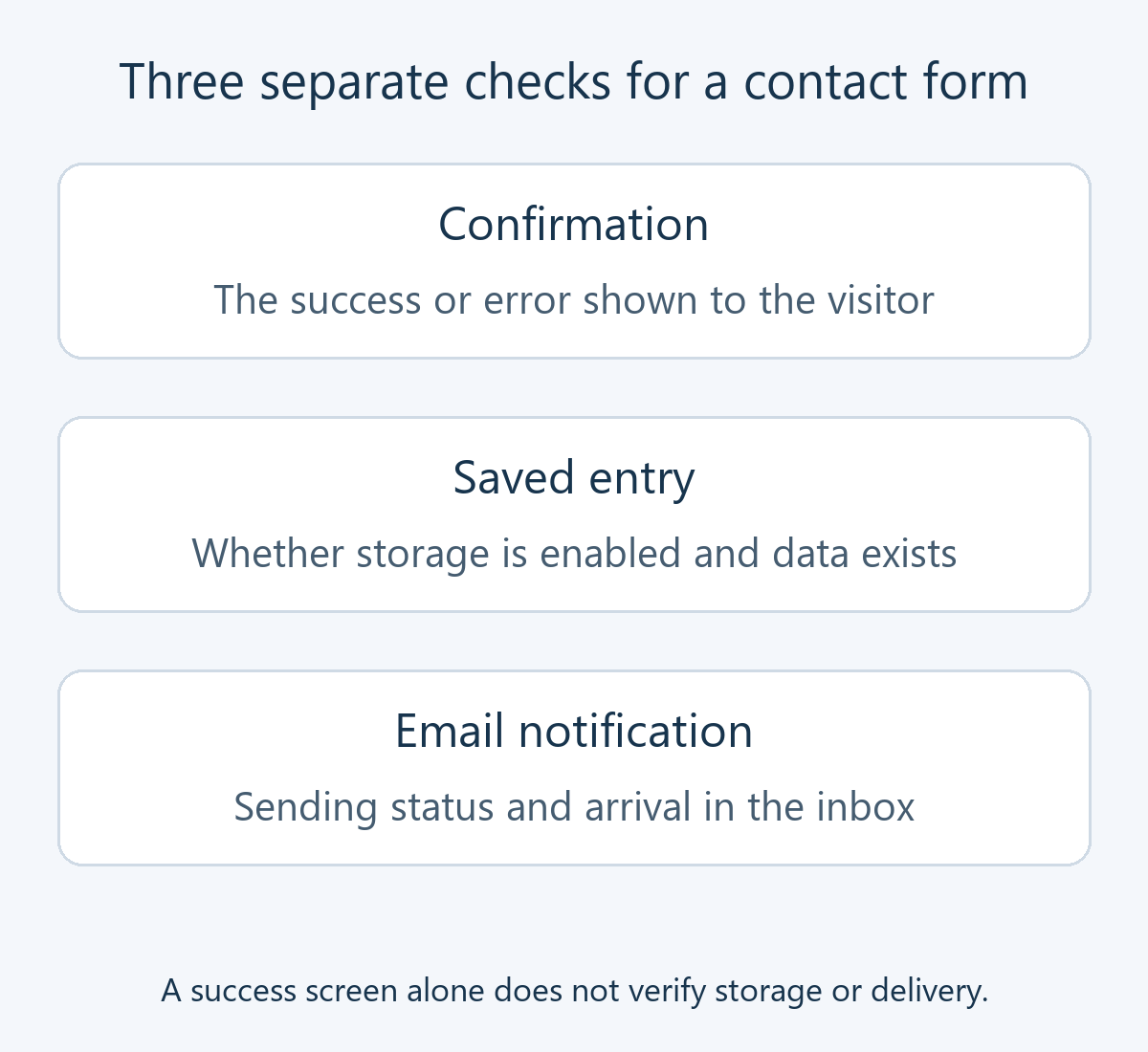
There are three separate outcomes to check: the visitor’s confirmation, the saved entry, and the notification received by the person handling it. Some products do not store entries by default. If you must recover inquiries during an email outage, choose the storage arrangement before opening the form to readers.
Compare building methods and entry storage
| Plugin | Building method | Entry storage | When to compare it |
|---|---|---|---|
| Contact Form 7 | Form tags and email templates | No built-in submission archive; consider Flamingo or another storage tool | You can maintain a basic form and its email fields directly |
| WPForms | Visual drag-and-drop builder | Lite relies on notifications; check dashboard entry management and Lite Connect restoration conditions | Operators frequently change fields and layouts |
| Formidable Forms | Visual builder with data-oriented extensions | Start with local entry management in the free edition | You need saved entries and may later add calculations, conditional forms, or data displays |
Receiving basic inquiries for free is different from having uploads, conditional questions, multi-page forms, and every integration included. Separate essential requirements from optional conveniences and check the license that includes each essential feature. Compare renewal prices and site limits, as well as any separate email or spam service, rather than only the introductory discount.
Product features and cost conditions to check
Contact Form 7: maintain the form and email together
Contact Form 7 is a free plugin. Open Contact → Contact Forms to edit a form and its email configuration. When you add an input, also include its corresponding mail tag in the email body. Otherwise, a question can appear on the page while its answer is missing from the notification.
The core product does not retain submissions. Review the official Flamingo integration if you need storage, then verify that an actual test entry appears in Flamingo’s inbound messages. Installing storage later does not recover earlier emails that were never retained. If you rename the default fields, also check how Flamingo retrieves the sender, email, and subject.
WPForms: distinguish convenient editing from entry access
WPForms lets you select a template and arrange fields visually. Its first-form guide starts at WPForms → Add New: choose a basic contact template, adjust labels and required fields, and save. Check the edition covering uploads or conditional display before committing to those requirements.
Lite’s notification emails are different from dashboard entry management. The Lite Connect documentation explains that enabled backups retain subsequent submissions on WPForms servers; restoring those backups as dashboard entries requires upgrading to a paid license. Each backed-up entry has a one-year retention window. Do not treat this as an always-readable local inbox in Lite; consider whether external storage and its conditions suit your needs.
Formidable Forms: decide how you will use saved information
Formidable Forms is a candidate for managing entries in its free edition and extending into calculations, conditional questions, and data presentation through Views. Product-family descriptions include paid features, so they are not a free-edition checklist. For uploads or more involved data processing, check the free-versus-premium comparison and the specific license.
The official creation guide starts at Formidable → Forms → Add New: create a blank form, add fields, and save it. For simple inquiries, start with basic inputs and notifications. Add quotation calculations or directory features only when you have a defined use. If you display submissions publicly, review which fields may be published and who can access them.
Follow one inquiry through setup and testing
Prepare a backup and recovery method, then build one form on a test page. If an existing form is in use, record its recipients and settings, and keep it available until the replacement is verified. The following is an example workflow for a general blog inquiry.
- Choose minimal fields. For example, make a name optional and an email address and message required. Use visible labels rather than relying entirely on placeholder text that disappears during typing.
- Separate recipient and reply addresses. Set the recipient to the responsible person. Use a site sender address allowed and authenticated by your mail service, and map the visitor’s email to Reply-To.
- Include the necessary input values in the email. Check the inquiry type, address, and message. In Contact Form 7, mail tags must correspond to form fields. In WPForms, review recipients and content under the builder’s Settings → Notifications.
- Configure storage and confirmation. Enable the appropriate entry storage or separate storage tool if required. Confirm receipt on screen without promising a response time you cannot meet.
- Embed the form and test as a visitor. Use the product’s block or an actual generated shortcode. Do not guess a form ID. Open the published test page while logged out or in a private window.
- Check valid and invalid submissions. Try an empty required field, an invalid email format, and valid input. On a phone, check typing, error feedback, and the submit button. Compare the saved entry with the email actually received.
For example, if your sending account belongs to your site’s domain and a visitor enters a personal address, keep your own account as sender and direct replies to the visitor. The Contact Form 7 mail guide instructs you to use a sender on the website’s domain. Editing an address does not authenticate it by itself; check the connected sending service and its authentication as well.
Handle missing mail, spam, and retained data separately
If confirmation appears but no email arrives, first inspect saved entries and spam folders. If the entry exists, check recipients, whether notifications are enabled, sending logs, and recipient-side filtering. Investigating WordPress email delivery helps narrow the failure more effectively than immediately rebuilding the form. Without retained entries, some missed inquiries may not be recoverable.
If submission itself is blocked, distinguish required-field errors from a spam classification. After adding CAPTCHA or a filter, test legitimate visitors first. If the problem followed a caching or JavaScript optimization change, revert relevant settings individually in a test environment. Review anti-spam coverage and false-positive handling; stacking filters indiscriminately creates more possible points of failure.
If you retain entries, define staff access, retention, deletion, and export procedures. Copies may exist in email accounts, the site database, backups, and connected services. Avoid unnecessary sensitive fields. If uploads are essential, check permitted types, size limits, storage, and access. Collecting an address to answer an inquiry does not automatically establish newsletter consent.
When replacing a form, verify the new submission and notification before changing the page’s block or shortcode, then test again. Keep the original configuration so you can revert if needed. Do not delete the previous plugin or form before exporting required records. For additional features, use the plugin selection and installation guide to evaluate compatibility and ongoing maintenance.