WordPress Booking Plugins: Amelia, Bookly, and Booking Calendar
Compare Amelia and Bookly for consultations, lessons, and service appointments, and Booking Calendar for availability calendars and booking requests by date or time slot. Prioritize staff and resource conflicts, confirmation and payment rules, and the actual free-edition limits over the calendar's appearance. Booking Calendar supports time slots too, so it should not be treated as exclusively a date-booking tool.
When a contact form is no longer enough
A contact form can collect a preferred time without establishing whether a member of staff or a room is available. A booking plugin exposes bookable times, dates, or resources and updates availability according to booking status. An appointment for one person and a class accepting several people up to capacity need different controls.
Identify the unit and the resource that is actually limited. A tutor's 45-minute consultation uses staff time; an eight-person class uses places; an overnight stay uses a room across dates. Two staff members sharing one meeting room can still create a room conflict even when their individual schedules are separate. Check whether people and shared resources must be controlled together.
Compare candidates and edition boundaries
| Plugin | Reason to consider it | Important cost or limit |
|---|---|---|
| Amelia | Appointments and events within one product family | Lite limits some integrations, staff arrangements, and advanced notifications; Square payments are available in Lite |
| Bookly | A staged service, provider, and time-selection flow | Free: one staff member and up to five services; check paid coverage for online payments and extensions |
| Booking Calendar | Full-day or time-slot availability and request approval | Multiple booking resources: Personal or above; online payments: Business Small or above |
These boundaries follow the distribution information for Amelia, Bookly, and Booking Calendar. A feature shown in a full-product demo is not necessarily part of its free edition. Match each requirement to the installed edition and the licence you intend to buy.
Text messages, WhatsApp, payment processing, and connected services can have separate charges. A payment provider such as Square must also support your operating country, currency, and business. Free payment integration in a plugin does not mean the provider processes transactions without fees.
Amelia: connect an employee, a service, and a form
The Amelia quick-start guide begins with one employee, one service, and a booking form. Configure the provider and working hours under Amelia → Employees, then create a category and service and assign that employee. Service management appears as Catalog or Services across the documentation and editions, so use the corresponding section in your installation.
- Enter the employee's name and email, working hours, and days off. Replace the default weekday hours with the real schedule.
- Set the service name, category, assigned employee, duration, and price. Check the employee's and service's Show on website switches if either fails to appear in the form.
- Add an Amelia block or a supported step-by-step form shortcode to a booking page. For example,
[ameliastepbooking]embeds that form; confirm availability in your edition. - Book through a logged-out window, then compare the date, employee, and status at Amelia → Bookings → Appointments. Test approval, changes, and cancellation.
The Default time slot step in General settings must accommodate the durations you need. If a 45-minute service and 15-minute buffer cannot be selected because only 30-minute increments appear, check that global step first. Employee-specific time zones and showing slots in the customer's local time are separate features with different plan considerations.
Bookly: service assignments and staff schedules matter
Bookly Free is a starting point for a small booking workflow. For online payments, more staff or services, and advanced booking options, compare Pro and the plans or add-ons offered through your purchasing route. The current plans coexist with documentation for individual add-ons; confirm what your chosen purchase actually includes.
Under Bookly → Services, configure categories and services and assign providers. The service documentation states that a service needs a category and at least one assigned provider to appear in the form. Entering a price does not itself activate online payment: distinguish paying locally from paying through an online integration.
Check individual availability at Staff Members → the employee → Schedule / Days Off. The working-hours guide explains that company Business Hours and Holidays become defaults for newly created staff, without automatically changing existing staff schedules. If changing business hours leaves the displayed availability unchanged, inspect the individual schedule too.
Booking Calendar: availability display or a request form?
Booking Calendar Free supports basic full-day and time-slot bookings, notifications, and approval management. Compare the relevant paid editions for separate room or equipment calendars, payments, seasonal pricing, or capacity. Giving two rooms different colours does not by itself create independent resource inventory.
Use the setup wizard and WP Booking Calendar → Settings to configure date or time selection, forms, and notifications. Add the Booking Calendar block or an admin-generated shortcode to the page. As the embedding guide explains, displaying availability alone is different from including the booking form. If visitors can see a calendar but cannot submit a request, check that choice first.
Decide whether pending requests should block availability. The official FAQ describes a configuration that shows pending dates as available, allowing multiple requests until one is approved. If your business needs first-come confirmation, verify the behaviour with two sessions. Collecting competing requests for later selection and preventing duplicate reservations are different operating models.
Check time zones, buffers, and external calendars
Check Settings → General → Timezone in WordPress. For a region that observes daylight saving time, a named city time zone accommodates seasonal changes better than a fixed UTC offset. If showing customers their local time, compare the booking page, confirmation email, and administrator calendar to ensure that they refer to the same instant. Show the time zone clearly when an overseas booking falls on a different date.
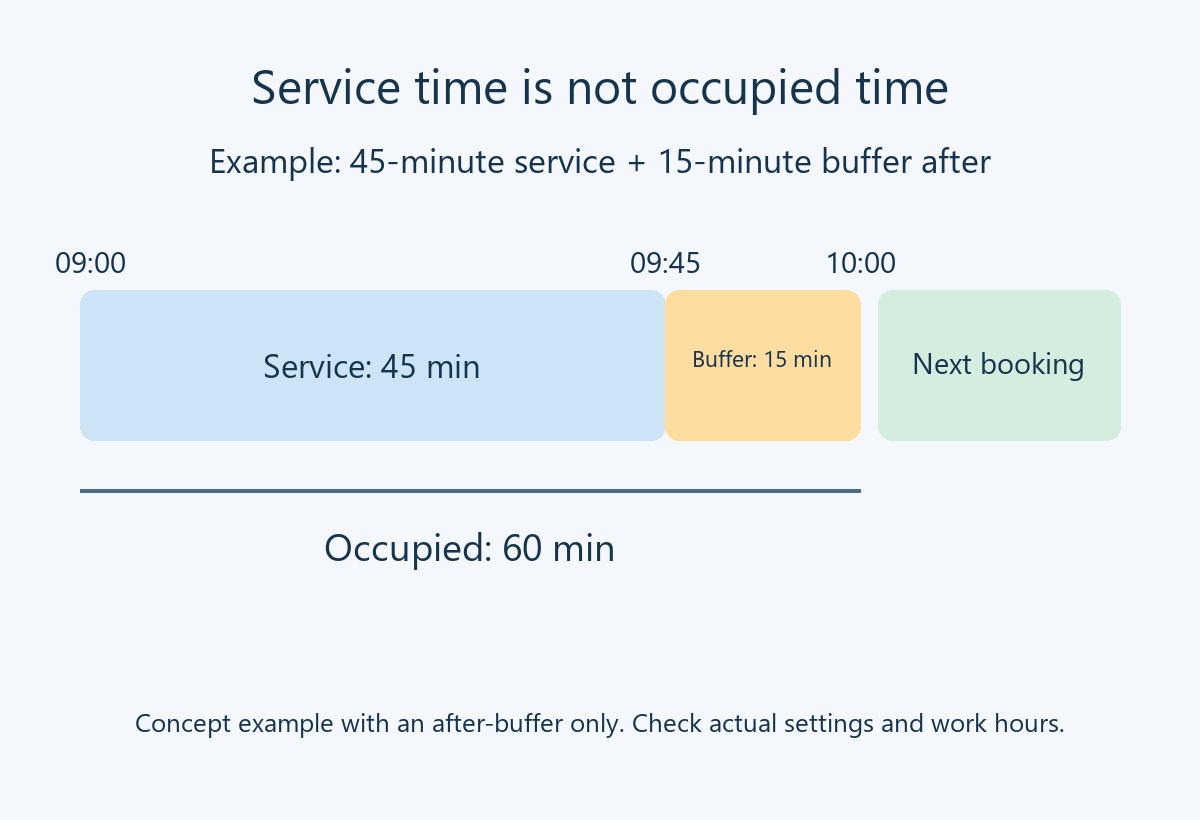
Service duration is the time delivered to the customer; preparation or clean-up buffers occupy time that another booking must not use. The diagram illustrates a 09:00 appointment lasting 45 minutes followed by a 15-minute buffer, with no buffer before it. The next booking starts at 10:00 in this example. Actual start times depend on working hours, slot increments, and both buffer settings. Check edition coverage for features such as Amelia's duration and buffers or Bookly's Padding time.
A one-off “add to calendar” button, a periodically refreshed iCalendar (.ics) feed, and synchronization that checks external busy events are different mechanisms. Connecting an .ics feed does not establish immediate two-way updates. Create a test external event and check when the matching slot closes and when it reopens after cancellation. If several sites sell the same resource, assess the risk of competing bookings during synchronization delays.
Test requests, confirmation, and payment separately
Use the following checks on the site you intend to operate. Looking at a product demo cannot establish that your own configuration passes them.
- Request handling: start with one service and provider or resource. Try ordinary hours, closed dates, and times near closing. Customer and administrator records should agree on the date, time, and capacity.
- Competing requests: open the same slot in two browser sessions. Check whether the second request is rejected, remains pending, or is allowed up to capacity, according to your intended rules.
- Payment states: use the provider's test mode for success, failure, and abandonment. Check whether confirmation precedes payment and when unpaid reservations release their slots. Do not assume automatic cancellation is included or enabled.
- Cancellation and changes: check customer-link deadlines, administrator changes, release of the old slot, and reservation of the new one. A booking cancellation does not necessarily issue a payment refund; compare payment records separately.
- Notifications: customers and providers should receive the correct request, approval, change, and cancellation messages in the right time zone. Check that scheduled reminders run at the intended time even when site traffic is low.
If the reservation exists but no email arrives, investigate sending and actual delivery before asking the customer to book again. If availability stays stale or a security check fails, investigate caching and script optimization in a test environment. Dynamic booking and checkout responses must not be replaced by stale cached content.
Prepare database and file backups before adoption or updates. Check exports for dates, time zones, booking states, and payment identifiers. During migration, keep new requests from splitting across two systems. Separate staging from live customer notifications and billing. Have a way to close the booking page temporarily and recover or contact customers using the existing reservation list.