How to Find WordPress Themes: Free and Paid Options
You can get WordPress themes from the official WordPress.org theme directory, theme developers’ websites, and theme marketplaces. For a first website, a practical approach is to try a free directory theme, identify what is missing, and compare paid products when you have a specific need for additional features or support.
A theme is a collection of files that controls how your site presents its content through layouts and design. If the relationship between WordPress, themes, and plugins is unfamiliar, see our introduction to WordPress and getting started. This guide explains where to look and what to check, rather than ranking individual themes.
Where can you get WordPress themes?
There are three main routes. A free base theme and a paid product with the same name can contain different things, so check what you will actually receive.
| Source | What you can find | What to check |
|---|---|---|
| Official WordPress.org theme directory | Themes you can install for free, with developer information | Free features, update information, and support forums |
| Developer’s official website | The developer’s free or paid themes and extensions | Whether you receive a theme or an add-on plugin, plus renewal and support terms |
| A marketplace such as ThemeForest’s WordPress category | Themes from multiple sellers in one place | Product type, seller, required plugins, and terms of use |
The dashboard paths below refer to a typical self-hosted WordPress installation. If you use WordPress.com, check its third-party theme upload requirements first. Its current guidance supports uploads on Personal, Premium, Business, and Commerce plans; free sites require an upgrade. The theme’s price is separate from your hosting plan.
Find free themes in the official directory
The simplest starting point is usually your dashboard. You can install directory themes without downloading a ZIP file to your computer first.
- Open Appearance → Themes. Sign in with an administrator account that can install themes, then select Add New Theme. Labels can vary slightly by language and dashboard interface.
- Search for your site’s purpose. Decide whether you need a blog, portfolio, or another format, then narrow the options with search and feature filters. Comparing two or three candidates is easier than installing dozens immediately.
- Read the details and preview the design. Look beyond the promotional image: check update information, requirements, reviews, and support discussions. Consider whether unresolved issues relate to your own use case.
- Install a candidate and inspect your content. Use the available preview after installation to see your actual posts and images before deciding whether to activate it.
If you do not have a site yet, browse the official theme directory and keep a short list of theme names and developer links. WordPress also documents dashboard installation and ZIP uploads in its guide to working with themes.
A directory preview, a developer’s demo, and a preview on your own site may use different content and settings. Check how a design handles long titles and posts with few images, rather than choosing solely because its large demonstration photo looks attractive.
Get paid themes from developers and marketplaces
A developer’s website lets you explore one company’s products alongside its documentation. A marketplace makes it convenient to compare multiple sellers. If you need a starting point for finding developers, WordPress.org maintains a list of commercially supported theme companies. Inclusion does not determine which product fits your site.
Once you find a candidate, work through these checks:
- Confirm the seller and official purchase page. Even if a review article introduced the product, read the final conditions on the developer’s website or the marketplace listing.
- Identify what the paid product adds. It might be a separate theme ZIP, a plugin extending a free theme, or a membership bundling multiple products.
- Read the setup guide before paying. Find out whether the demo requires a particular page builder and how you would edit the areas you care about, such as the post list or header.
- Keep your files and purchase records. Save the installation package, documentation, license details, and seller account information for reinstalls and support requests.
“Support included” also needs interpretation. For example, Envato’s item support guidance distinguishes help with product features from customization and installation services. Buying a theme does not automatically mean the seller will build your website for you.
How do free and paid themes differ?
A paid theme is not automatically faster or better for search visibility. Judge the purchase by the settings you need, the time required to create your design, and the documentation and support you receive.
| Criterion | For a free theme | For a paid product |
|---|---|---|
| Design controls | Can the included settings create the pages you need? | Will you actually use the additional controls? |
| Starting layouts | Are useful patterns or sample layouts available? | Is the specific demo you want included in your purchase? |
| Getting help | Are public forums and documentation useful? | What are the contact method, support period, and exclusions? |
| Running costs | Do you genuinely need paid additions? | Are there renewal charges or separate plugin costs? |
A personal blog may only need readable articles and straightforward navigation. A business site whose landing pages change frequently might benefit from controls that make those changes easier. Compare the pages and work you actually need, rather than the number of advertised demos.
Choose a theme that suits your website
Once you have two or three candidates, compare them using the same content. Prepare a long title, a post with images, a post without images, a post archive, and an introduction page to expose differences that matter to your site.
- Purpose: Prioritize article width and post listings for a reading-focused site, or image proportions and project pages for a portfolio.
- Mobile readability: Check whether visitors can find the menu, read titles and paragraphs, and tap buttons comfortably on a small screen.
- Editing workflow: Check which editor controls the design. Block themes use the Site Editor to work with areas such as headers and footers as blocks. Classic themes use approaches such as the Customizer and theme-specific settings. This distinction is separate from whether a theme is free or paid.
- Required features and compatibility: If you need a shop or multiple languages, read the compatibility guidance for your intended plugins and test important screens. A compatibility label is not a guarantee for every combination.
- Ongoing management: Review the update history, clarity of the documentation, and contact options. Do not judge quality by a single update date in isolation.
For more on editing workflows, see the official block theme explanation and introduction to classic themes. If you already have a preferred workflow, check that the candidate’s setup instructions match it.
What to check before downloading or buying
Before paying, review the product’s contents as carefully as its appearance. On marketplaces, the word “template” can refer to several different types of files.
- Is it actually a WordPress theme? An HTML template or a template kit for a particular editor is different from a theme. Check the product category and instructions to see whether it is installed through the theme uploader.
- Which ZIP should you install? A package containing documentation and sample assets may hold a separate installable theme ZIP. Envato’s guidance on the missing style.css error explains this distinction. If installation fails, verify the product type and uploaded file before trying to create a blank CSS file.
- Are additional purchases necessary? Check whether the demo’s builder and extensions are included or require paid editions. Check the inclusion and permitted use of demonstration photos and fonts separately.
- What are the usage and renewal terms? Read the site or project limits, update delivery method, support period, automatic renewal rules, and refund conditions. Distinguish the software’s usage terms from the scope of update and support services.
If the description is unclear, ask the seller: “What else must I install or buy to reproduce this demo?” Keep the answer with the product details after purchasing.
Understand installation, activation, and demo import
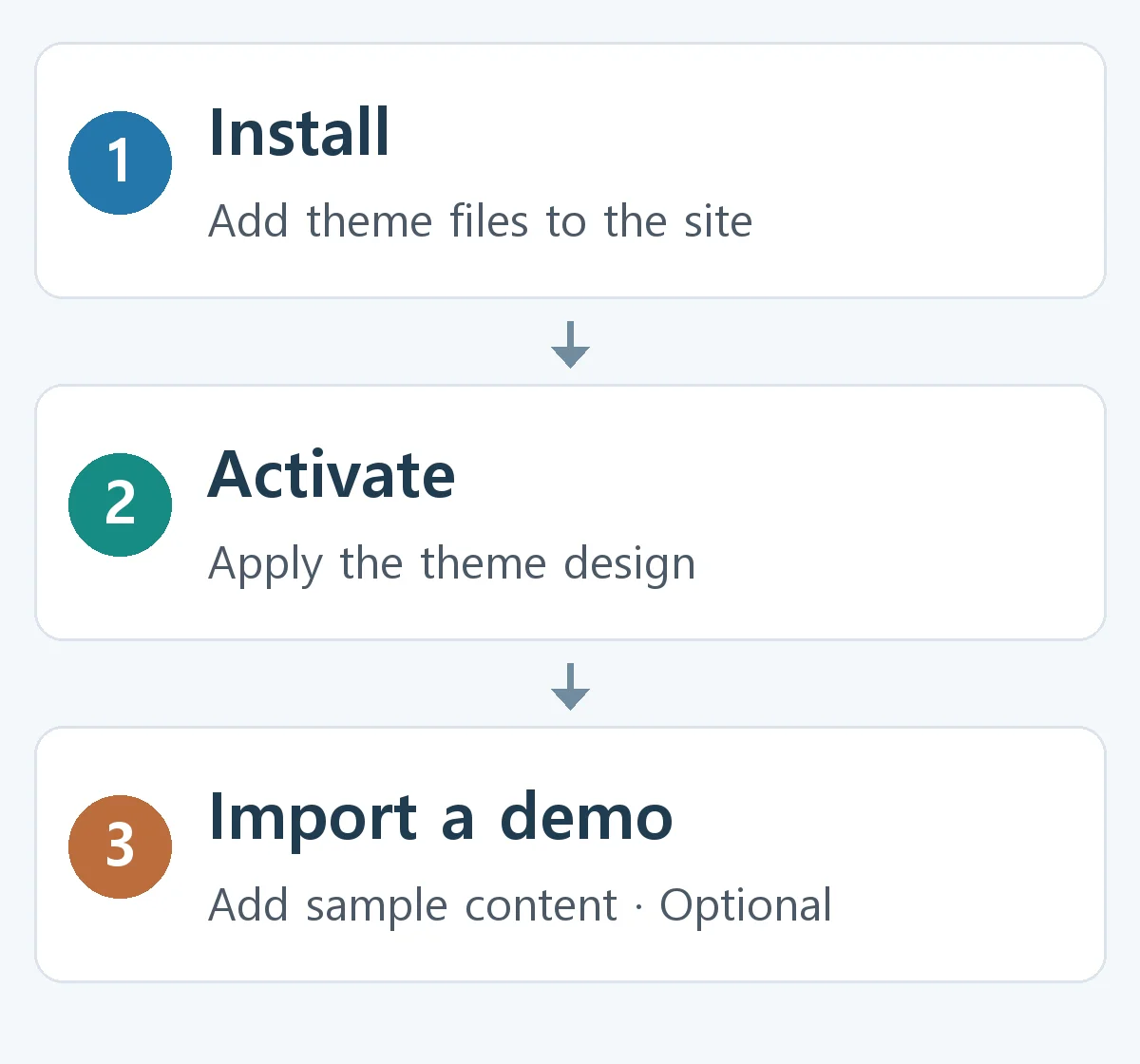
Installation adds theme files to your site. Activation applies that theme to the site’s current appearance. Demo import is a separate operation that adds sample content or settings; it is neither available nor necessary for every theme.
- Prepare a recovery path for an existing site. Record the current theme and key settings, and back up both files and the database. Try changes on a test site where possible. See the official WordPress backup guidance for the scope of a backup.
- Install from the directory or upload the theme ZIP. For an external installation file, the usual path is Appearance → Themes → Add New Theme → Upload Theme. If installation fails, check requirements and file type before proceeding.
- Preview your content, then activate. Review archives, articles, navigation, the homepage, and mobile layouts. A preview does not fully verify contact forms or purchases, so test important functions on a test site.
- Import a demo only if you need it. Follow the developer’s instructions and check what will change. An import may add sample posts, pages, and menus or alter settings. Replace sample content with your own and remove unnecessary examples.
- Check the result again. Open representative pages and test menu links, images, mobile display, and essential features. You can reactivate the previous theme if needed, but this does not automatically reverse content or settings changed by a demo import. Use your saved settings and backup when necessary.
Starting with one free theme that can present your essential pages is a reasonable choice. After adding real posts and images, you will be better placed to explain what is missing and decide whether a paid product solves that specific problem.