What Is WordPress? Features, Costs, and Getting Started
WordPress is an open-source content management system (CMS) for creating and running a website by managing posts, images, and pages. It can support a blog, a business website, a portfolio, or an online store. The software itself is free to use, but the hosting, domain, and maintenance needed to operate a public site depend on the setup you choose.
What is WordPress?
A content management system lets you publish, edit, and organize material without writing the code for every webpage from scratch. In WordPress, you work in an administration area to write posts, insert images, save drafts, and publish. Visitors see the resulting website.
For a travel blog, for example, you might use posts for a growing collection of travel stories and pages for relatively permanent information such as an About or Contact page. The editor lets you arrange headings, paragraphs, and images as blocks, so programming knowledge is not a prerequisite for basic publishing.
However, starting without code does not mean every kind of website can be built without ongoing work. More complex requirements may call for learning settings, changing code, or hiring help. Open source means the source code is available; it does not mean every service or operating expense is free.
About the WordPress project · WordPress documentation on pages
What kinds of websites can you build?
WordPress combines core publishing features with choices of design and additional functionality. Websites using the same software can look and work very differently depending on their purpose.
- Blogs and online magazines: Organize articles into categories and manage contributors and publishing schedules. This suits a website that regularly adds new content.
- Business and local-store websites: Arrange pages and navigation around information visitors need, such as services, location, and contact details.
- Portfolios: Present project images and descriptions, adding an inquiry feature if needed.
- Online stores and membership sites: Combine relevant plugins and external services. Payments, delivery, and the handling of customer information require their own operational planning.
You do not need every possible feature at the beginning. A small information site can start with a few useful pages; a store should first define how products, orders, and payments will work.
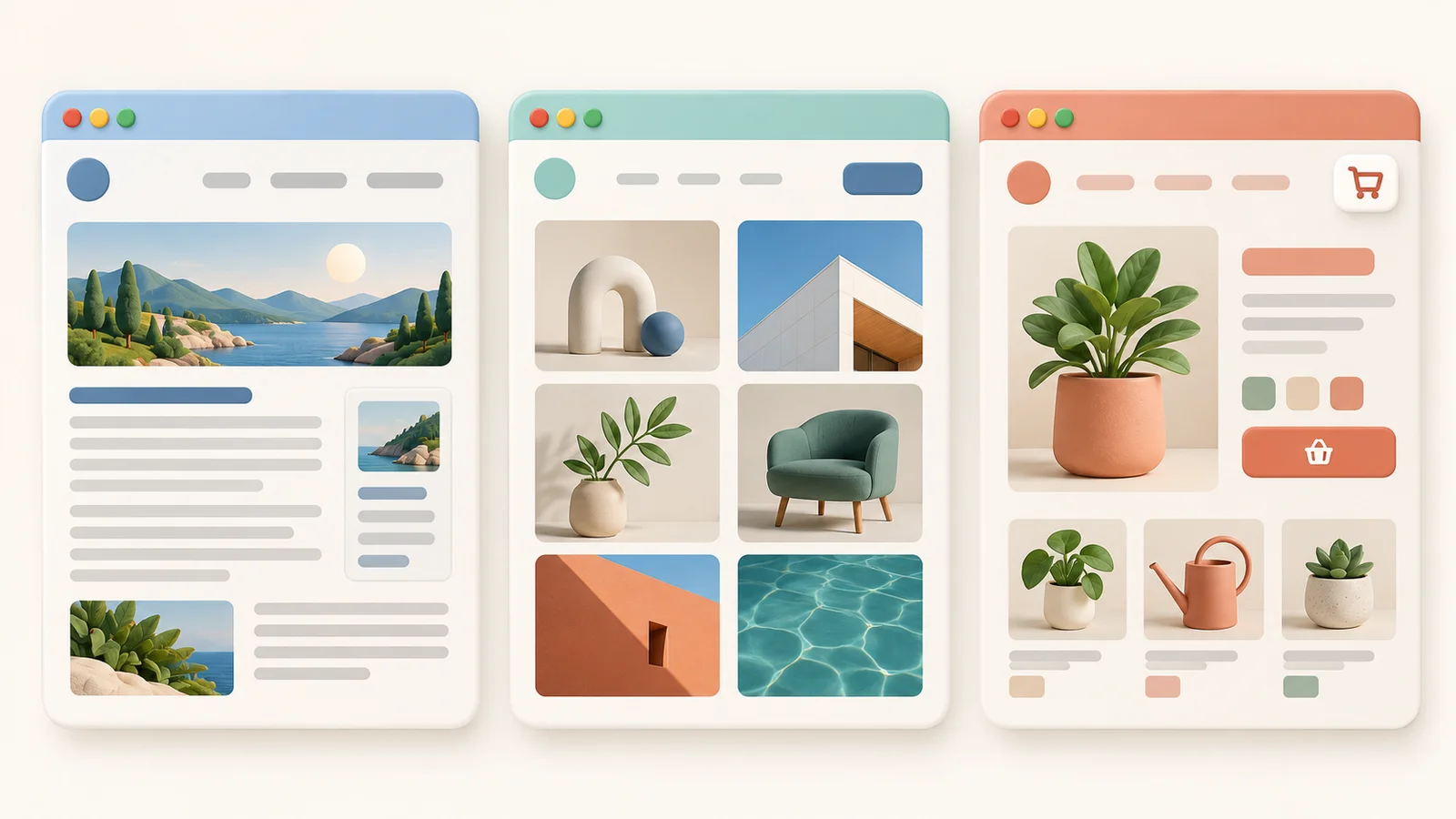
The official WordPress feature overview describes these broad uses. Check separately whether a particular capability is built in or requires an extra plugin or paid service.
What is the difference between WordPress.org and WordPress.com?
WordPress.org is the project website that provides the WordPress software and related resources. WordPress.com is a hosting service built around that software. Think of the choice as where and under what management arrangement to run WordPress, rather than choosing between two unrelated content management systems.
Hosting stores a website’s files and data on a server and makes the site accessible online. “Self-hosted WordPress” usually means installing WordPress with a hosting provider you choose. It does not mean you need a server in your home, and a self-hosted setup can still use a managed hosting service.
| Consideration | Choosing a separate hosting provider | WordPress.com |
|---|---|---|
| Hosting setup | You select a provider and package. An automatic installer may be available. | Hosting is included in the service. |
| Maintenance responsibility | Check the hosting agreement to see who handles updates, backups, and recovery. | The platform handles many technical tasks; support and tools vary by plan. |
| Themes and plugins | Your choices depend on the server environment and hosting terms. | Check the features, themes, and plugins permitted by the plan and service. |
| Cost structure | Add hosting, domain, and optional products together. | Check the chosen plan and the terms for domains and add-ons. |
WordPress.com’s official guidance says paid plans support plugin installation. The blanket claim that WordPress.com cannot install plugins is therefore inaccurate. Before subscribing, check that the specific plugins, backup restoration tools, and development features you need are supported by the plan.
A site’s address ending in .com or .org does not tell you which hosting arrangement it uses. A domain is an address; the provider hosting the site is a separate matter.
The official WordPress.com and WordPress.org comparison · Understanding WordPress hosting · WordPress.com plugin guidance
What do themes and plugins do?
Themes and plugins are the next concepts to understand after core publishing. In general, a theme controls how content is presented, while a plugin extends what a site can do. Some products overlap these roles.
Themes: design and layout
A theme influences article lists, typography, colors, headers, footers, and page layouts. The same words and photographs can appear in a magazine-style layout or a simple blog presentation depending on the theme.
Themes are usually managed under Appearance → Themes. Editing paths vary: block themes use the Site Editor, while classic themes may use the Customizer or their own settings. Preview a change or test it on a separate site before applying it. Check navigation, mobile layout, and existing content. Posts may remain intact while a previous theme’s special layouts or features no longer work in the same way.
Plugins: additional functionality
A plugin adds software for needs such as contact forms, search engine optimization settings, spam protection, or selling online. On a self-managed installation, you normally search under Plugins → Add New Plugin, install a plugin, and activate it. The available menu and installation permissions can differ with hosting services and account roles.
Before installing, review supported WordPress versions, recent updates, documentation, and support information. Check for overlap with features already provided by your site. Adding one necessary plugin at a time and checking the result makes problems easier to trace. If a problem appears, deactivate the new plugin to compare behavior; read its documentation before deleting it, because deletion may remove settings or data.

Official guidance on WordPress themes · Official plugin installation and management guidance
What are the advantages and drawbacks?
You can shape content and functionality around your needs
A site can begin as a blog and gradually add information pages, inquiries, or sales. You can choose presentation and functionality separately and, depending on your environment, consider moving to a different host or migrating data. Migration still requires checking domain settings, image files, plugin data, and redirects from existing addresses.
WordPress also provides ways to manage search engine optimization (SEO), including titles, URLs, internal links, and sitemaps. Installing WordPress or an SEO plugin does not guarantee rankings or visitors. Useful content, accessible public pages, indexability, and a readable experience still matter.
More choices also create maintenance work
More themes and plugins can mean more settings and more places to investigate when an update changes the layout or causes a conflict. Speed should be evaluated through the hosting, images, theme, plugins, and caching setup rather than assuming every WordPress site is inherently fast or slow.
Keep a backup before important changes and use a test environment where possible. A recoverable site backup needs to account for both the database and files. An export of posts is not the same as a complete recovery plan. Even if a host provides automatic backups, check retention periods and the actual restoration process.
WordPress guidance on backing up files and databases
What does running WordPress cost?
Free WordPress software does not mean every website is free to operate. Decide how you will run the site, then total the expenses that apply. Starting on WordPress.com’s free service has a different cost structure from using a separate host and a custom domain.
| Item | When it applies | What to compare |
|---|---|---|
| WordPress software | The open-source software itself is free. | Distinguish the software from paid hosting or development work. |
| Hosting or a service plan | Depends on the public hosting arrangement you choose. | Renewal price, storage, support, and backup and restoration terms. |
| A custom domain | When you want your own address. | First-year offers, renewal costs, and transfer conditions. |
| Paid themes and plugins | Optional, depending on requirements. | Site-license limits, update and support periods, and renewal terms. |
| Development, maintenance, and external services | When you need help or additional services. | Scope of work, separate email or payment-related charges, and incident support. |
A new personal blog can begin by considering a free theme and only essential functionality. A store or booking site also needs a budget for payments, workflows, and maintenance. List the requirements and responsibilities before buying a collection of premium products.
Calculate the first-year total and later renewal totals separately. Check whether a displayed monthly rate requires several years of advance payment. Avoid buying a separate tool for a feature already included in your plan. Service terms can change, so consult the current WordPress.com plan-feature guide and your chosen host’s terms when making the purchase.
What should you prepare before getting started?
The first goal is a site you can publish to and manage safely, rather than a site filled with every feature. The sequence below mainly describes a separate hosting setup. If you choose WordPress.com, follow its site-creation process and administration screens.
- Define the purpose and required functions. Identify your audience and information, and whether you need only information and contact pages or also selling and bookings. Sketch the homepage and main navigation before choosing a theme or plan.
- Choose the hosting arrangement and address. Select a provider or service plan and decide whether to use a custom domain. For a separate host, check the official WordPress server requirements, HTTPS, automatic installation, and backup coverage. Connect a purchased domain using the host’s instructions.
- Install and check basic settings. Use the host’s installer or the official installation process. A self-managed site’s administration area is normally at
/wp-admin/. Under Settings → General, check the site title, language, and timezone, and confirm that the public site opens over HTTPS. - Prepare a theme and essential pages. Preview the theme and create pages such as About and Contact. Under Settings → Reading, choose a static homepage or a list of recent posts. Navigation-editing locations differ between block and classic themes.
- Write and review a first draft. Use Posts → Add New Post to add a title, text, images, and a category. Preview paragraphs, images, and links on a mobile-sized screen before publishing when ready. Choose your URL structure early; changes to published addresses may require redirects.
- Check the visitor experience and recovery plan. Sign out or use a private window to test navigation, links, and contact features. Add only necessary plugins. Decide who handles updates and backups and how the site will be restored if something goes wrong.
Installation is not the whole job if visitors cannot read the content or an inquiry never reaches you. Confirming a saved setting in the administration area and confirming that a feature works for a visitor are different checks.
Who is WordPress a good fit for?
WordPress is worth considering when you want to build a lasting collection of content and choose your own site structure and features. You can adjust the operational burden if you have time to learn the settings or a budget for technical management.
- Growing a blog into your own website: Consider whether you want to build a useful archive of posts and categories alongside information and contact pages.
- Creating a business, portfolio, or sales site: Specify required features, then distinguish what you can configure from what a host or specialist should handle.
- Minimizing work beyond writing: Compare the support offered by WordPress.com and other managed services. If simplicity matters more than flexibility, a simpler blogging service may suit you better.
If you are choosing a blogging platform, the comparison of WordPress and Tistory costs, flexibility, and migration offers additional decision criteria. Start by creating your essential pages and one article, then choose an arrangement that lets you keep adding and maintaining content over time.