WordPress SEO Plugins Compared: Yoast, Rank Math, and The SEO Framework
Start with Yoast SEO if you want guidance while writing, Rank Math if you want several SEO tools, including redirects, in one interface, and The SEO Framework if you prefer automatic metadata with selective adjustments. All three can manage search titles, descriptions, and XML sitemaps; the useful differences are the editing workflow, extra features you need, and how safely you can move existing settings.
What an SEO plugin handles—and what still needs your judgment
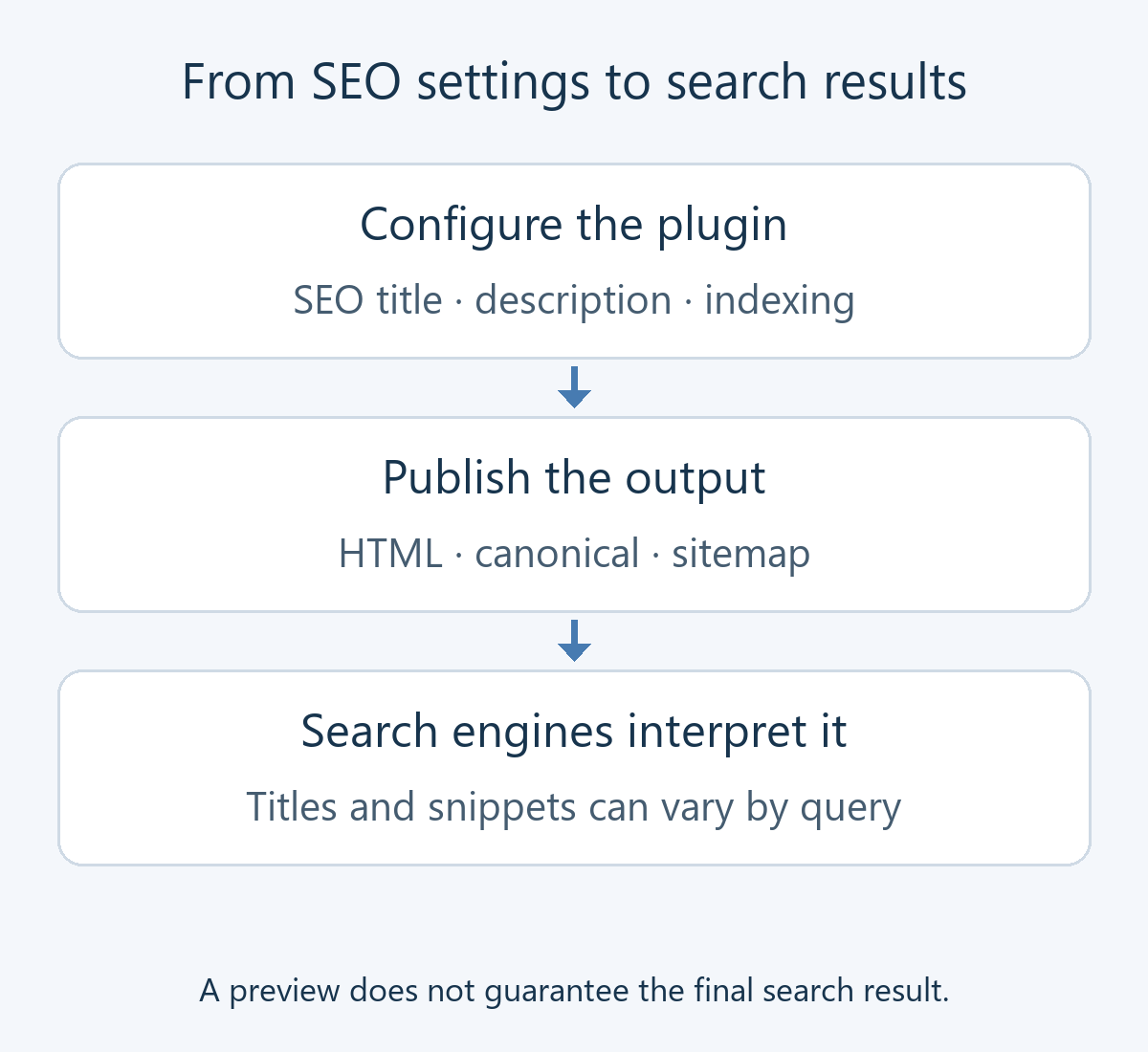
A search engine optimization (SEO) plugin manages information that helps search engines interpret WordPress pages. This includes the HTML title, a meta description summarizing the page, a canonical URL identifying its preferred address, robots directives controlling indexing, and information for social sharing. An XML sitemap lists URLs for search engines to discover.
For example, a post called “I finally organized my old photos” might use a more descriptive search title such as “Reduce WordPress Photo File Sizes: Resizing and WebP Conversion,” provided that this accurately describes its content. Changing a title will not help readers if the article never explains how to resize or convert the files. The plugin cannot fill gaps in the instructions or verify their accuracy.
The search preview in the editor is also an illustration, rather than a guaranteed search result. Google can select different title text or generate a description from the page depending on the query. Its documentation on search snippets explains that meta descriptions are one possible source for the text shown in results.
Generative engine optimization (GEO), which considers how content may be used in generated answers, and answer engine optimization (AEO), which emphasizes clear answers to questions, require editorial work too. Define terms, state conditions, and provide evidence in the article itself. A plugin score cannot do that work for you. Our comparison of SEO, AEO, and GEO explains their different scopes.
How the free editions differ
The following differences matter when choosing a core plugin. Paid prices depend on the number of sites, renewal terms, and additional services. Before comparing subscription totals, identify which product actually includes the feature you need.
| Consideration | Yoast SEO | Rank Math | The SEO Framework |
|---|---|---|---|
| Search titles, descriptions, XML sitemaps | Available in the free core | Available in the free core | Available in the free core |
| Writing workflow | SEO and readability analysis alongside editing | Keyword analysis and configurable controls | Generated metadata and the SEO Bar |
| Redirect management | Integrated manager included in Premium | Free Redirections module; scheduling and some management options require PRO | Consider a separate redirect tool or server configuration when needed |
| Where extra costs may arise | Premium and separate AI or store products | PRO features and Content AI allowances or subscriptions | Extensions such as Focus and Articles |
| First task to try | Check whether its guidance improves a real draft | Enable only the modules you need and assess the settings | Inspect generated titles and descriptions on representative posts |
Check the official directory listings for Yoast SEO, Rank Math, and The SEO Framework for their core capabilities. Stores and multilingual sites should also verify compatibility with their commerce or translation plugin and inspect the output for each language.
Which workflow suits each plugin?
Yoast SEO: guidance during the writing process
Yoast suits editors who want search previews and SEO or readability feedback alongside their draft. In a blog with several contributors, these prompts can help everyone review whether titles describe the topic and descriptions have been completed. Treat the analysis as a way to find things worth checking. Repeating a keyword until an indicator turns green can make a useful article harder to read.
The free edition handles basic metadata. The integrated manager that sends visitors from an old URL to a replacement is a Yoast SEO Premium feature. Before paying for that feature alone, check whether your server or an existing tool already handles redirects. Also check analysis support in the languages you actually publish.
Rank Math: several tools managed through optional modules
Rank Math lets you enable functions as modules. It is a candidate when you want metadata, 404 monitoring, and redirects in the same product. The free edition includes a redirection module, but options marked PRO in its documentation, such as scheduling and categorization, have a different purchase scope.
For example, to manage a moved address, check Advanced mode and the Redirections module under Rank Math SEO → Dashboard → Modules. Begin with an exact rule for the address you moved; it is easier to verify than a broad rule affecting many unrelated URLs. See the official redirection instructions for the available controls.
More settings also mean more decisions to maintain. Rather than enabling every analytics, schema, or AI option immediately, decide which information each tool will manage and enable what the site needs. Check Content AI allowances separately from the paid plugin edition.
The SEO Framework: automatic defaults with targeted adjustments
The SEO Framework generates titles and descriptions from information in WordPress and lets you adjust them. It suits an operator who prefers checking important pages’ output to working through a writing score for every draft. Automation still needs review. If an introduction begins with a greeting or unrelated announcement, inspect whether the generated description actually explains the page.
Distinguish the core plugin from its extensions. Focus provides keyword-oriented writing guidance, while Articles adds article-related structured data; their availability is described on the extensions and subscription page. Decide whether you need these additions before comparing the total cost.
A practical first-installation checklist
You need a WordPress administrator account allowed to install plugins and a backup you can restore. Check that your hosting arrangement or plan supports plugin installation. Our guide to finding WordPress plugins covers the general installation process. The steps below are for a first SEO plugin; if you already use one, follow the migration section instead.
- Record the existing output. Save the URLs, titles, and descriptions for the homepage, one post, and one category. Record any pages intentionally excluded from search and their current settings.
- Activate one candidate and complete its initial setup. In Yoast, use “Yoast SEO → General → First-time configuration.” Rank Math provides a setup wizard; The SEO Framework uses the administrator’s “SEO” settings. Labels and locations can vary by version or interface language.
- Define the site and its public content. Check whether it represents a person or an organization, the site name, and a default sharing image. Decide which posts, pages, and archives should appear in search rather than excluding or including every content type indiscriminately.
- Write a title and description for one representative post. Make the title describe the answer provided, then summarize what readers will learn in one or two sentences. For a photo-compression guide, this might identify the file formats, resizing choices, and result checks the article explains.
- Open the sitemap and inspect the public page. Follow the actual sitemap link shown in the plugin settings and check that the intended posts are included. Do not assume that every plugin uses the same sitemap path.
For the initial configuration screens, consult Yoast’s first-time configuration guide, the Rank Math setup guide, or The SEO Framework setup instructions.
If you already use an SEO plugin, verify the migration first
Replacing a plugin that already controls titles, descriptions, and indexing is a data migration. Activating a new product does not mean those values have moved. Title variables, taxonomy settings, custom canonicals, and redirects may have different import support, so check them as separate categories.
- Back up the files and database, and export the existing settings. A settings export alone may not contain all post-level metadata. Make sure you know what the backup covers and how to restore it.
- Try the documented importer on a staging copy. For example, Rank Math imports other tools’ data under “Status & Tools → Import & Export.” If the screen is missing, check Advanced mode. Read the supported sources and fields in its import and export documentation before proceeding.
- After migration, leave one product responsible for the main SEO output. Do not delete the old plugin’s data before the importer has had a chance to use it. Running two products that both output the same metadata should not be the production configuration.
- Compare sample URLs against your records. Include a normal post, a category, an intentionally excluded page, a page with a custom canonical, and a redirect. Restore or move missing values manually and verify them again.
- Apply the verified configuration to the live site. If duplicate titles or unwanted search exclusions appear, stop the rollout and restore the previous configuration. When an importer has altered the original metadata, reactivating the old plugin may be insufficient; restoring the database backup may be necessary.
In particular, The SEO Framework’s Transport migration tool states that it can change and delete other plugins’ metadata. Avoid repeatedly importing the same live data while trying several products. Our WordPress backup plugin comparison can help you assess recovery options.
How to check what your site actually outputs
Open the changed page while logged out or in a private browser window. Use the browser’s “View Page Source” function to find <title>, name="description", rel="canonical", and name="robots". Check that the title and description are intentional and the canonical does not identify an unrelated article. An absent robots meta tag is not automatically an error, but an unwanted noindex directive on a public article needs investigation. The HTTP X-Robots-Tag header can provide separate directives too.
If the change is missing, clear the page and CDN caches and check again. If conflicting descriptions appear, investigate whether another SEO tool or the theme is producing the same metadata. The visible article heading and HTML title can serve different purposes, but they should describe the same topic.
A working sitemap does not mean immediate indexing. Submit the public URL to Search Console’s URL Inspection tool and check its crawl and indexing status; our guide to checking a blog post’s indexing status explains the process. Before attributing a ranking change to a plugin, establish that the intended metadata and indexing choices survived the switch.