How to Check Blog Post Indexing in Google Search Console
You can check whether a blog post is indexed by Google with the URL Inspection tool in Google Search Console. Inspect the public URL, then review its indexing status, last crawl and Google-selected canonical URL. Being indexed and appearing prominently for a particular search query are separate questions.
Prepare the URL you want to check
Indexing is the process of analyzing a page and storing information for search. Crawling is the earlier process of fetching it, so a crawl does not automatically mean a page is indexed. Choose one post and copy its actual public address. An editor or preview URL will not tell you the status of the published article.
Select a Search Console property that includes that address. Check the final URL in your browser rather than mixing up http and https versions or addresses with and without www. If the site has not been added to Search Console, complete ownership verification first.
For example, if an old article URL redirects to a replacement, inspect the replacement first and keep the old address as a separate redirect check. Starting with one intended public URL makes the diagnosis easier to follow.
Inspect an individual blog post
- Select the site property in Search Console.
- Paste the complete public address into the URL inspection bar and run the inspection.
- Read the indexing result and expand the page indexing details.
- Record the last crawl, page fetch, indexing permission and canonical information.
The initial report uses Google's stored information rather than a fresh test of the page. A result saying the URL is on Google indicates eligibility to appear, not guaranteed visibility for every query. See Google's URL Inspection tool documentation for the report fields.
Record the specific reason alongside the inspected address instead of simply writing “not indexed.” That makes later comparisons meaningful: you can tell whether the status changed or you inspected a different version of the URL.
Interpret the reason a page is not indexed
For a site-wide view, open Indexing → Pages, select a reason and inspect example URLs. Not every excluded URL needs fixing. First decide whether it is an original article that should appear in search.
| Status | Meaning and next check |
|---|---|
| Discovered - currently not indexed | Google knows the URL but has not crawled it. Check public access and internal links. |
| Crawled - currently not indexed | Google fetched the page but has not indexed it. Review its content and duplication rather than repeatedly submitting it. |
| Alternate page with proper canonical tag | Another URL is the intended original. No change is needed if that relationship is correct. |
| Page with redirect | The URL sends visitors elsewhere. Inspect the final destination you want indexed. |
Google's Page indexing report guide explains these different reasons. Trying to index every alternate or redirected address is usually the wrong objective.
A practical next step is to check whether several important posts share the same reason. A single affected article suggests starting with that page and its URL relationships. A wider pattern suggests reviewing shared templates, settings or server access. This narrows the investigation; the status alone does not prove a cause.
Check settings for pages you want in search
First open the article while logged out. Google's minimum requirements include allowing crawling, returning a successful response and providing indexable content. Meeting those requirements does not guarantee indexing. Use the Google Search technical requirements as your starting point.
- Visibility: Check for draft, private or password-protected status. Publish only content intended for readers.
- Indexing exclusion: Look for an unintended
noindexdirective in an SEO plugin or response header. Do not remove exclusions from pages that should remain out of search. - Canonical URL: Check that the intended original matches the declared canonical. Avoid confusing duplicate or parameterized URLs with the main article.
- Internal links: Make sure a relevant article or category links to the post. Add a useful contextual link if the page is otherwise isolated.
robots.txt controls crawling; noindex requests exclusion from indexing. Blocking crawling can prevent Google from seeing a page's noindex directive. Review Google's noindex requirements and change only the setting responsible for the problem.
In WordPress, also review Settings → Reading → Search engine visibility. If a public blog unintentionally discourages search engines, consider correcting that setting. The WordPress Reading settings documentation describes the option.
Save the current settings before editing them, then check the public page and inspect the URL again. Internal links should be ordinary navigable links with descriptive wording. Google's crawlable links guidance explains what search engines can follow.
A successful live test does not confirm indexing
Run Test live URL when you need to check whether the current page is accessible after a change. Use it to compare the present page with stored indexing information. Passing the live test does not confirm indexing or rankings.
For example, an old exclusion may remain in the stored report after you remove it from the site. Record “the current block has been resolved” separately from “the indexed report has updated.” That distinction can prevent unnecessary rounds of settings changes.
Request indexing and follow up
After publishing a new post or fixing a problem, you can request indexing through URL Inspection. Owner or full-user access is required. Crawling can take days or weeks, and repeated requests neither accelerate it nor guarantee indexing. For many URLs, also maintain a sitemap. Follow Google's recrawl request guidance.
Later, inspect the same address and compare the last crawl and exclusion reason. Once the article is indexed, move on to query impressions and clicks. If it remains excluded, review the access, canonical and content checks you have not yet resolved instead of increasing the number of requests.

Does Mass-Produced AI Content Hurt Search Rankings? Google and Bing Policies
AI-assisted content is not penalized simply because AI was used. Learn how Google and Bing treat scaled content, which publishing patterns create risk, and how to build a responsible review workflow.

What Are Stock Content Sites? Five Platforms and Image Licensing Basics
Learn what stock-content sites offer and how Adobe Stock, Shutterstock, Getty Images, iStock, and Alamy differ. Check free and royalty-free terms, editorial limits, and image rights before you download.
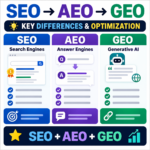
SEO vs. AEO vs. GEO / Key Differences and How to Use Them
Compare SEO, answer engine optimization, and generative engine optimization, then learn how clear answers, credible evidence, and useful structure support all three.

Blogging in the AI Era: A Practical Content and Traffic Strategy
How can blog owners stay useful as AI search changes discovery? Learn how to build distinctive posts, improve existing content, create return paths, and measure results that matter.

Google Analytics / How to Exclude a Specific IP Address in GA4
Exclude your home, office, or development traffic from GA4 by defining internal IP addresses and testing an exclusion data filter before activation.

What Is Affiliate Marketing? A Beginner's Guide for Bloggers
Learn how affiliate links, qualifying actions, and approved commissions work. This guide also covers choosing a program, writing useful recommendations, and disclosing financial relationships clearly.

How to Check Blog Post Indexing in Google Search Console
Learn how to inspect a blog URL, interpret indexing exclusions and check visibility, canonical URLs and internal links. Understand when to use live testing and request indexing.
How to Convert Images to WebP / PhotoScape X and Online Tools
Learn how to convert JPG and PNG images to WebP with PhotoScape X or a browser-based tool, choose a useful quality setting, and avoid common publishing problems.

What Are UTM Tags? Track Social and Newsletter Traffic in GA4
Build consistent UTM links and find their source, medium and campaign values in GA4. Includes naming examples, missing-data checks and privacy precautions.

WordPress vs Tistory: Costs, AdSense, Control, and Migration
Compare WordPress and Tistory on cost, maintenance, AdSense approval and ad rules, search visibility, and portability. Use practical criteria to choose the right blogging platform for your plans.