What Are UTM Tags? Track Social and Newsletter Traffic in GA4
UTM tags add source, medium and campaign information to a link so you can distinguish which promotional links brought visitors to your blog. Different values let you separate social media and newsletter traffic to the same post in GA4. Creating a tagged link alone does not collect visits: the destination site must already have working Google Analytics measurement.
UTM stands for Urchin Tracking Module and commonly refers to campaign-tracking URL parameters. A parameter is a name-and-value pair appended to an address. Think of the tags as analytics labels for shared links, while the article itself stays the same.
Suppose you promote one article through an Instagram profile and a regular newsletter. Separate link labels let you compare those distribution methods. To distinguish a top button from a text link within the newsletter, add a placement label as well.
The labels describe the campaign information written into the link. Someone who copies and forwards that link can pass the labels along too. Do not interpret the results as a complete record of a person's journey or as proof of their identity.
Choose four consistent values
For basic tracking, define the source, medium and campaign together. Add a content value when comparing link placements within one campaign. Google's campaign URL guidance notes that parameter values are case-sensitive, making consistent naming essential.
| Parameter | What it distinguishes | Example values |
|---|---|---|
utm_source |
The distribution source | instagram, newsletter |
utm_medium |
The traffic method | social, email |
utm_campaign |
The promotion you want to analyze together | autumn_posts |
utm_content |
A link or placement within that promotion | profile, main_link |
These are illustrative naming choices. Keeping the distribution destination in source and the method in medium helps each field do a distinct job. Check your existing naming list before inventing new values for every campaign.
A simple tracking sheet can hold the destination URL, source, medium, campaign, content and placement. If you mix Newsletter and newsletter, you will have to reconcile separate values later. Lowercase names and a consistent separator are a useful starting convention.
- Copy the final public article URL. Do not use an editor or preview address.
- Open Google's Campaign URL Builder and enter Website URL, source, medium and campaign. Add content when needed.
- Copy the generated address and open it to confirm that it reaches the correct post.
- Use that tested address in the actual social profile, post or newsletter link.
This fictional address illustrates the structure. Replace it with your own article URL before using it.
https://example.com/blog/post/?utm_source=instagram&utm_medium=social&utm_campaign=autumn_posts&utm_content=profile
For the newsletter version, you could change source to newsletter, medium to email and content to main_link, while keeping the campaign name. That produces two distribution sources within one promotion.
If the address already has parameters beginning with ?, do not add another ?; append additional ones with &. A builder helps avoid missing fields or malformed separators. If you shorten the URL, test the final short link as well as the original destination.
Find the traffic in GA4
GA4 means Google Analytics 4. For visit-level acquisition, open Reports → Acquisition → Traffic acquisition and choose Session source / medium or Session campaign. Navigation can differ by report configuration; an Editor can restore a missing report. See the Traffic acquisition report guide.
- Select a date range that includes the period when you shared the links.
- Look for the source/medium combinations you assigned, such as
instagram / socialandnewsletter / email. - Use Session campaign to group the promotion, then compare sessions alongside engagement measures.
A person's first acquisition source can differ from the source of their current visit. Session-scoped dimensions are the appropriate starting point for checking a newly shared link. Google's traffic-source scope documentation explains the user, session and event distinction.
The expected outcome is identifiable campaign values in the report, not a particular number of visits or a guaranteed winning channel. When distribution sizes differ, raw session counts alone do not establish which channel works better. Compare the follow-up actions relevant to your objective too.
Troubleshoot missing values
- Shared link: Confirm the social post or email contains the tagged version.
- Destination: Check that redirects and short links preserve the required parameters.
- Measurement: Check the GA4 property, destination-page tracking, consent settings, blocking and internal-traffic filters.
- Names and dates: Review capitalization, spelling, date range and selected dimensions.
Standard reports are not finalized immediately after a click. Google notes that processing can take 24–48 hours and values may change during that period. Allow for the documented data freshness intervals. A single test visit from your own device is not enough to diagnose the whole measurement setup.
Keep tracking organized
Use this workflow for links distributed outside your site. To understand clicks on your own menus or related-post links, consider separate click-event measurement rather than reusing campaign labels. That keeps the analysis purpose clear.
Never put someone's email address, phone number or real name in UTM values. URLs can be shared, stored and sent to Analytics. Google's guidance on avoiding personally identifiable information specifically includes campaign parameters.
If an advertising platform already uses auto-tagging, check the manual and auto-tagging rules before adding UTMs. Do not automatically carry a naming scheme for unpaid social posts into an existing advertising setup. When a convention changes, retain the old links in your records and apply the new rule to newly distributed links.

What Are Stock Content Sites? Five Platforms and Image Licensing Basics
Learn what stock-content sites offer and how Adobe Stock, Shutterstock, Getty Images, iStock, and Alamy differ. Check free and royalty-free terms, editorial limits, and image rights before you download.

WordPress vs Tistory: Costs, AdSense, Control, and Migration
Compare WordPress and Tistory on cost, maintenance, AdSense approval and ad rules, search visibility, and portability. Use practical criteria to choose the right blogging platform for your plans.

Google Analytics / How to Exclude a Specific IP Address in GA4
Exclude your home, office, or development traffic from GA4 by defining internal IP addresses and testing an exclusion data filter before activation.

How to Check Blog Post Indexing in Google Search Console
Learn how to inspect a blog URL, interpret indexing exclusions and check visibility, canonical URLs and internal links. Understand when to use live testing and request indexing.

How to Convert Images to WebP / PhotoScape X and Online Tools
Learn how to convert JPG and PNG images to WebP with PhotoScape X or a browser-based tool, choose a useful quality setting, and avoid common publishing problems.
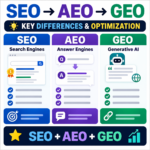
SEO vs. AEO vs. GEO / Key Differences and How to Use Them
Compare SEO, answer engine optimization, and generative engine optimization, then learn how clear answers, credible evidence, and useful structure support all three.

Blogging in the AI Era: A Practical Content and Traffic Strategy
How can blog owners stay useful as AI search changes discovery? Learn how to build distinctive posts, improve existing content, create return paths, and measure results that matter.

What Are UTM Tags? Track Social and Newsletter Traffic in GA4
Build consistent UTM links and find their source, medium and campaign values in GA4. Includes naming examples, missing-data checks and privacy precautions.

What Is Affiliate Marketing? A Beginner's Guide for Bloggers
Learn how affiliate links, qualifying actions, and approved commissions work. This guide also covers choosing a program, writing useful recommendations, and disclosing financial relationships clearly.

Does Mass-Produced AI Content Hurt Search Rankings? Google and Bing Policies
AI-assisted content is not penalized simply because AI was used. Learn how Google and Bing treat scaled content, which publishing patterns create risk, and how to build a responsible review workflow.